# Add Workflow
From [Workflow](/admin/settings/workflow/), click **Add Workflow**. The fields shown depend on which **Type** you pick.
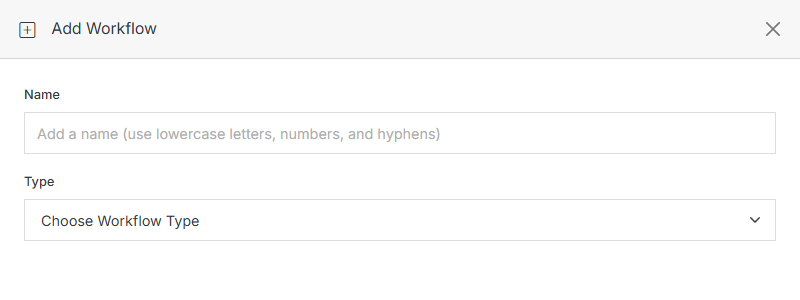
**Name** | **Description**
:--- | ---
Name | The workflow's internal name. Lowercase, letters/numbers/hyphens only.
Type | What triggers the rule -- see below.
## File triggers: Saved, Staged, Published
Fires when a file changes state.
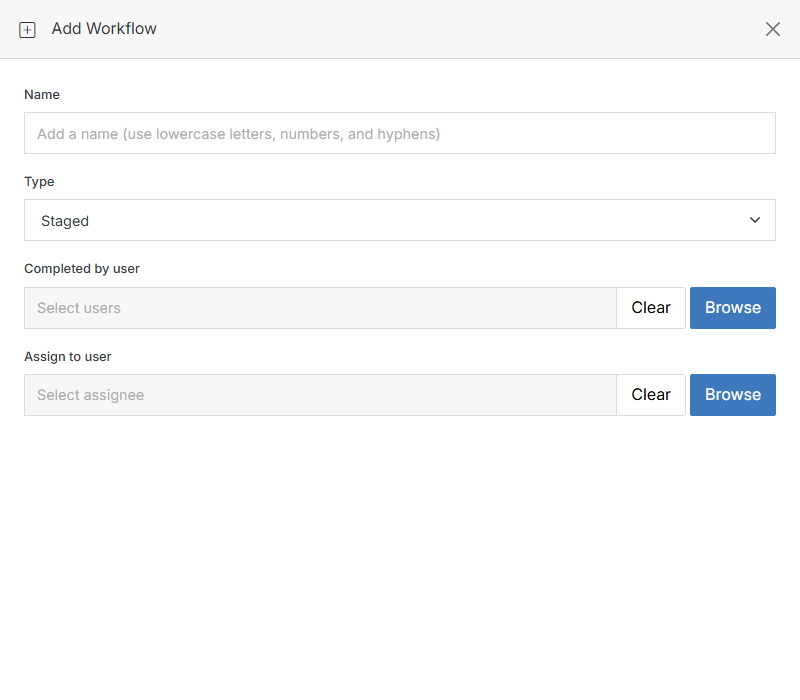
**Name** | **Description**
:--- | ---
Completed by user | Optionally restrict the trigger to when the action was performed by specific user(s). Leave empty to match any user.
Assign to user | Optionally assign a follow-up task to a user when the rule fires.
## Task triggers: Completed by user, Completed by user from group
Fires when a task is marked complete, either by a specific user or by any member of a group.
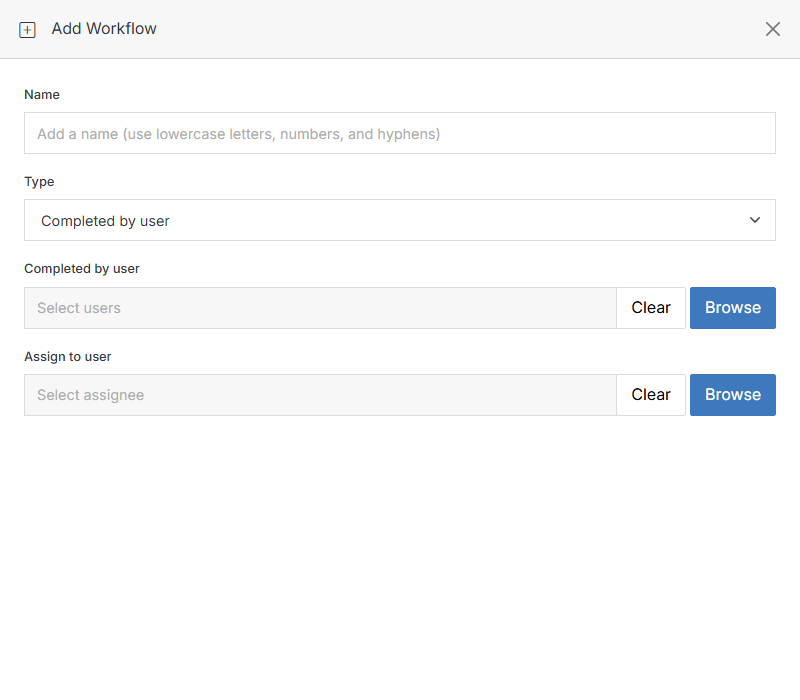
Same **Completed by user** / **Assign to user** fields as the File triggers above.
## Form Submission
Fires when a form is submitted -- optionally only when a submitted field matches a value. See [Form Overview's Workflow](/forms/form-overview/workflow/) for the full walkthrough with a real example, including its Emails/Email Subject/condition-builder fields, since opening Add Workflow from a form pre-fills this Type and scopes the rule to that form.