# Dashboard
The Dashboard is the home screen of your CMS. From here, you can quickly connect to your websites and recent work, manage users and groups, track tasks, and more. You can also access advanced admin features, including Settings and the API.
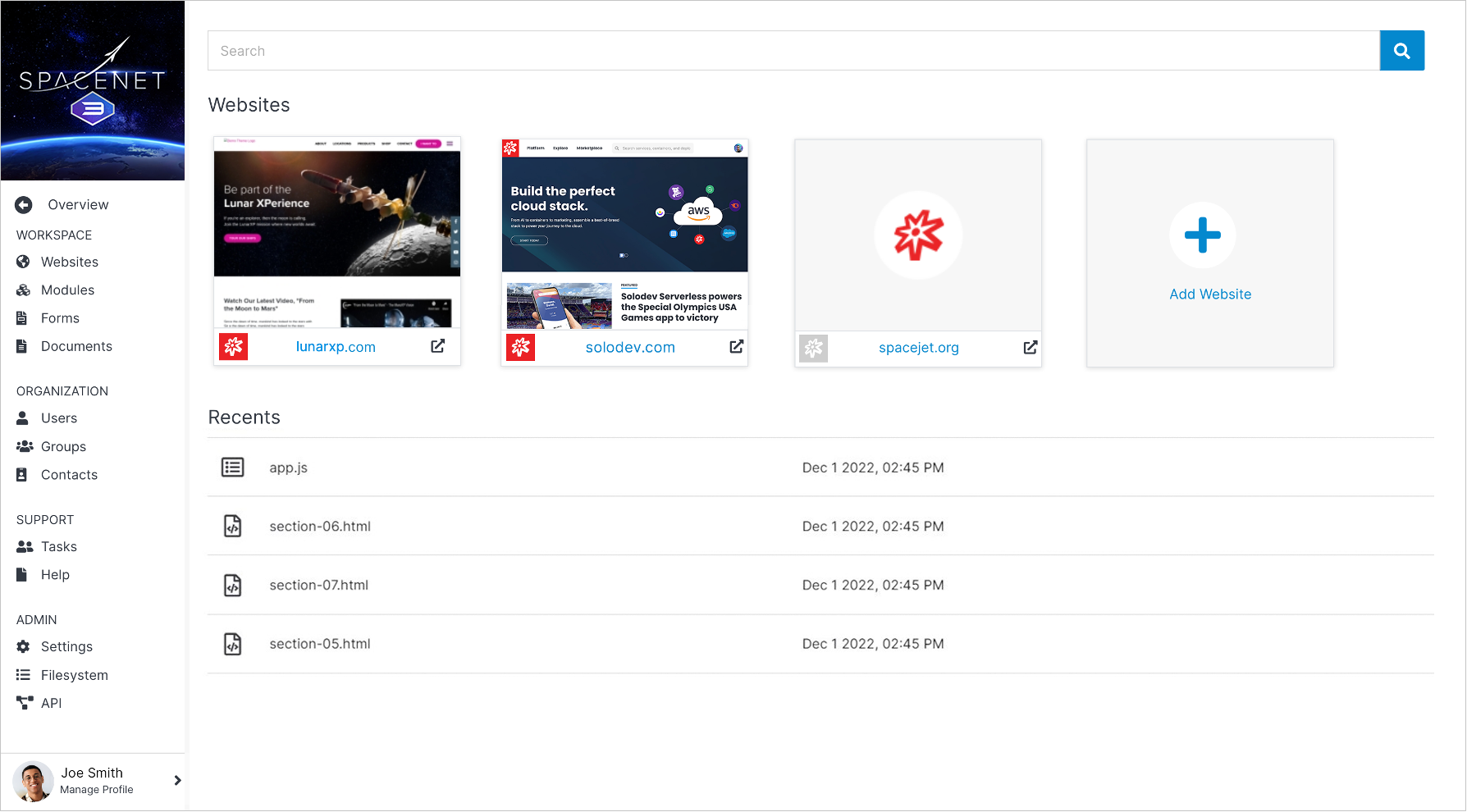
**Name** | **Description**
:--- | ---
[Source](/source/) | Browse the combined tree for everything in your deployment — Websites, Modules, Users, Documents, and Forms — in one place.
[Websites](/websites/) | Access existing websites in your CMS deployment to modify pages, publish updates, add new websites, and manage your content operations.
[Modules](/modules/) | Update or create low-code managers that power features on your website, such as blogs, landing pages, calendars, and more.
[Forms](/forms/) | Create custom website forms using a drag-and-drop builder, view form completions, export lead data, and more.
[Documents](/documents/) | Upload files and images, create folders and file groups, and use stored documents in your websites and apps across your CMS deployment.
[Engage](/engage) | Segments, File Groups, Scheduler, and Experiments for reaching and testing content with specific audiences.
[Organization](/organization) | Manage users, create groups, set permissions, build contact lists, and configure AI Agents.
[Support](/support) | View and update your team’s tasks across websites.
[Admin](/admin) | Manage your CMS settings for apps and workflows, set permissions, and utilize the Solodev API.
!!! Tip:
No matter where you are in the CMS, you can always return to your Dashboard by clicking your organization’s logo in the upper left corner of the screen. By using [Permissions](/websites/website-overview/permissions/), you can control the specific websites, modules, and apps your team members can access.
!!!
The main Dashboard has two sections below the search bar: **Websites** and **Recents**.
## Search
A global search bar sits at the top of the Dashboard. It searches Mongo directly, across both files (HTML, STML pages, documents, images) and module/datatable entries — a result can be a page like `county.html` or a specific record like `datatable_entry_id: 7248`.

Results are shown in a table with **Name**, **Modified**, and **By** columns. Click a result to open it directly.
!!! Note:
Press **Enter** or click the search button to run the search. Click **Close** to dismiss the results.
!!!
## Websites
You can access any active websites using the cards on the main Dashboard.
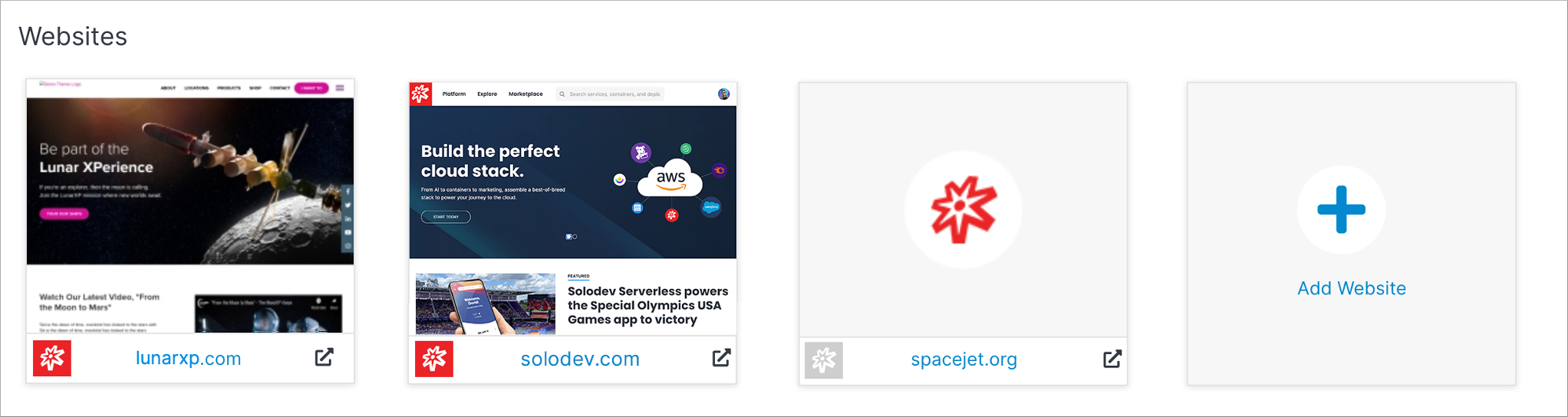
**Name** | **Description**
:--- | ---
[Add Website](/websites/add-website/) | Create a new website in your CMS deployment.
!!! Tip:
Click on the thumbnail image or default logo to edit your CMS website. You can also click on the website URL or arrow icon at the lower right to view the live site.
!!!
## Recents
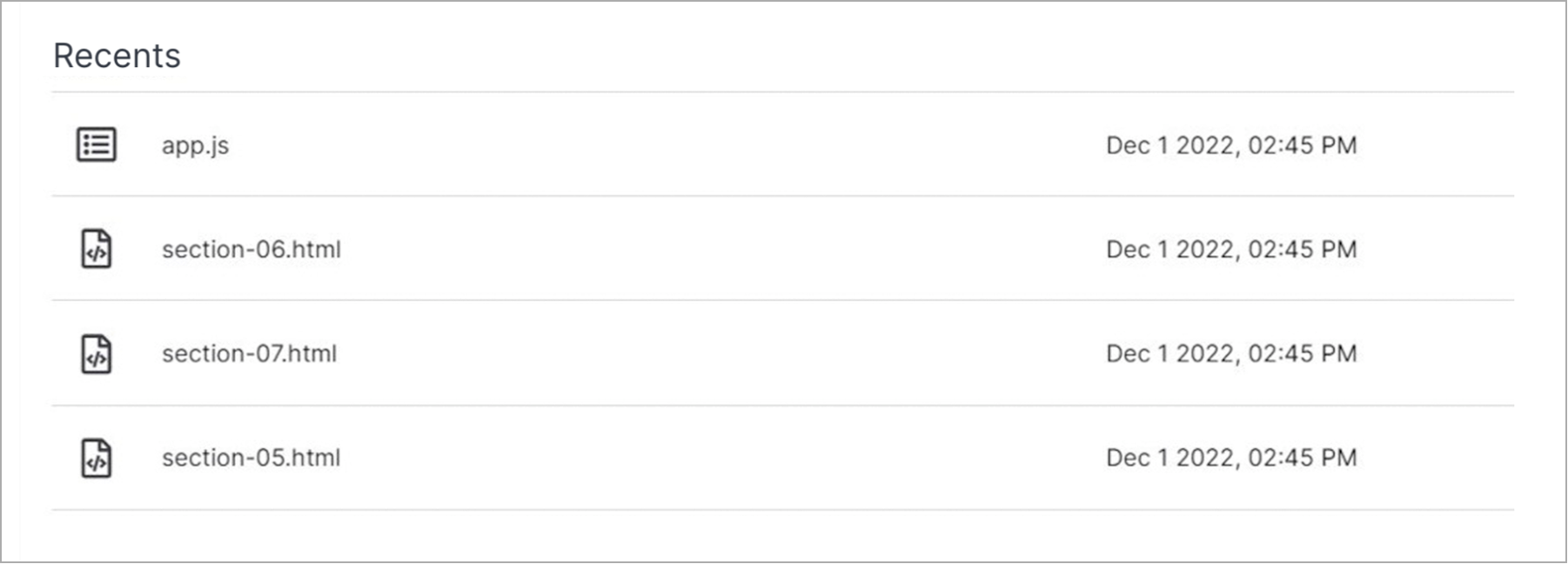
From the Dashboard, you can quickly link to the most recent website pages, template files, documents, or images you have worked on in your CMS deployment.
To access a specific file, click on a row in the **Recents** table.
## Profile
Use the links in the lower left corner of your Dashboard to manage your profile or log out from Solodev CMS.
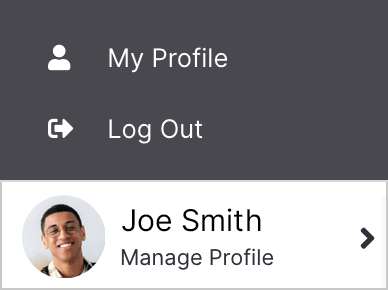
**Name** | **Description**
:--- | ---
[My Profile](/profile/) | Check and edit your profile details.
Log Out | Log out from Solodev CMS.