# Add Module
From the [Modules](/modules/) list, click **Add Module** to create a new low-code module. There are two ways to fill out the **Module Picker**, depending on whether you want a ready-made schema or one you design yourself.
## Starting from a prebuilt module
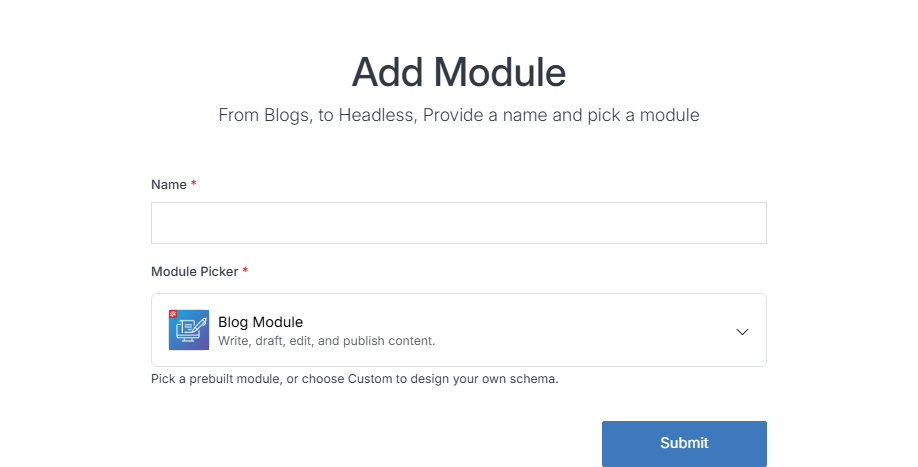
Pick one of the ready-made types and the form collapses down to just Name and Module Picker. The schema (columns, field types, whether it's schedulable) is already defined for you.
**Type** | **Description**
:--- | ---
Custom Module | Build your own module schema and form template from scratch -- see [Building a Custom Module](#building-a-custom-module) below.
Alert Module | Boost user engagement with eye-catching, personalized alert notifications.
Blog Module | Write, draft, edit, and publish content. Ships with Body/Hero Image/Summary/Title fields.
Calendar Module | Schedule events and publish date-based content.
News Module | Keep users informed with announcements and releases.
Quick Links Module | Create convenient shortcuts to key destinations.
Slider Module | Showcase featured products and visual highlights.
All six named types (everything but Custom Module) come from Solodev, not something your organization defines -- if none fits, choose Custom Module and build your own schema.
## Building a Custom Module
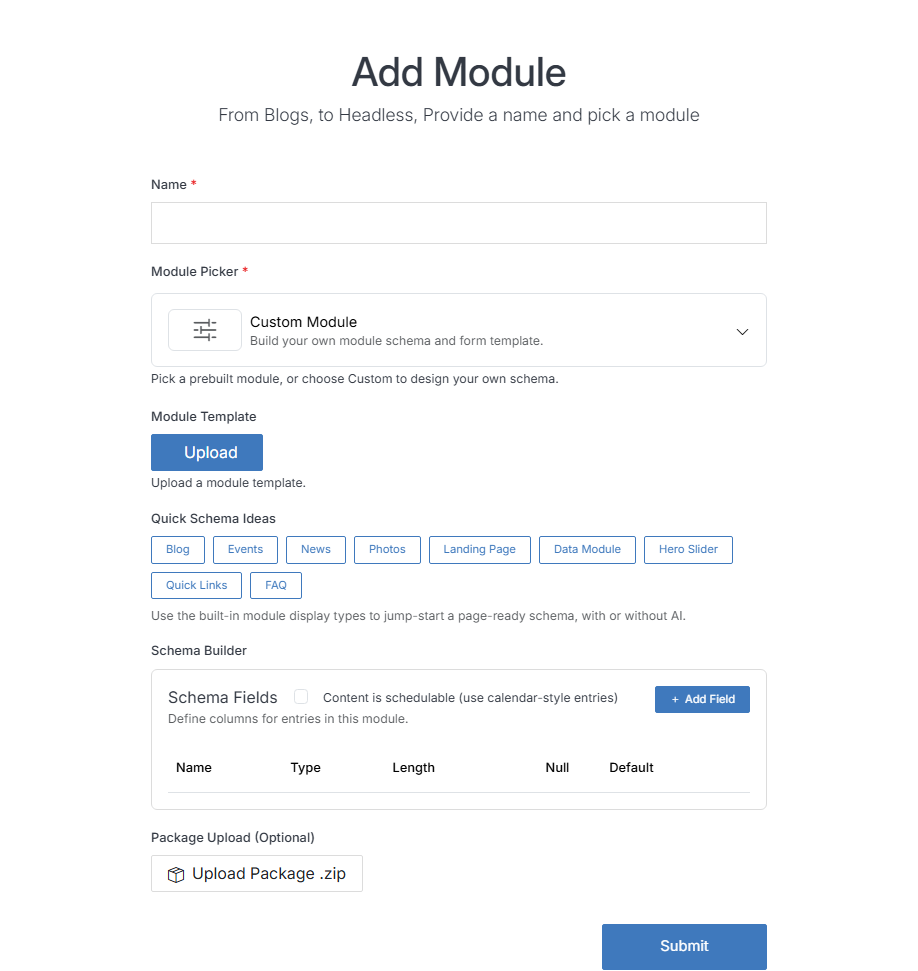
Choose **Custom Module** (the default) to design your own schema from scratch. The rest of the fields below only appear in this path.
Field | Description
--- | ---
Name | The name of your new module.
Module Picker | **Custom Module** to build your own schema, or a prebuilt type (see above).
Module Template | Upload a module template file instead of building one from scratch.
Quick Schema Ideas | One-click starting schemas -- Blog, Events, News, Photos, Landing Page, Data Module, Hero Slider, Quick Links, FAQ -- to jump-start a page-ready schema, with or without AI.
Schema Builder | Define the columns (fields) for entries in this module. Click **+ Add Field** to add a column, and set its Name, Type, Length, Null, and Default.
Content is schedulable | See [Calendar vs. datatable modules](#calendar-vs-datatable-modules) below.
Package Upload (Optional) | Upload a module package `.zip` that bundles a schema, template, and assets together.
Click **Submit** to create the module. You'll land on its module dashboard, ready to [add entries](/modules/module-overview/add-entry/).
## Calendar vs. datatable modules
A module is a **calendar-style module** if **Content is schedulable** is checked in Schema Builder, and a **datatable-style module** if it's left unchecked. That single checkbox is the entire difference -- there's no separate "Calendar module" type to pick.
- **Schedulable (calendar-style):** every entry gets Start/Stop date fields, and the module's entries can be shown on a calendar view as well as a list. Blog, Events, and News are schedulable by default -- a blog post or event naturally has a publish date and, optionally, an end date.
- **Not schedulable (datatable-style):** entries are just rows with no date fields, shown as a plain list/table. Quick Links and FAQ are datatable-style by default -- a nav link or an FAQ entry doesn't need a publish window.
This also determines which URL pattern the module's own overview page uses under the hood (`/modules/calendar/` vs `/modules/datatable/`), though you'll normally just get there by clicking the module's name from the [Modules](/modules/) list.