# API Tokens
Add, store, and manage API tokens associated with your account, allowing you to authenticate your connection to different apps and services.
Existing tokens are listed in a table on this page, each with its name, API key, status, and version.
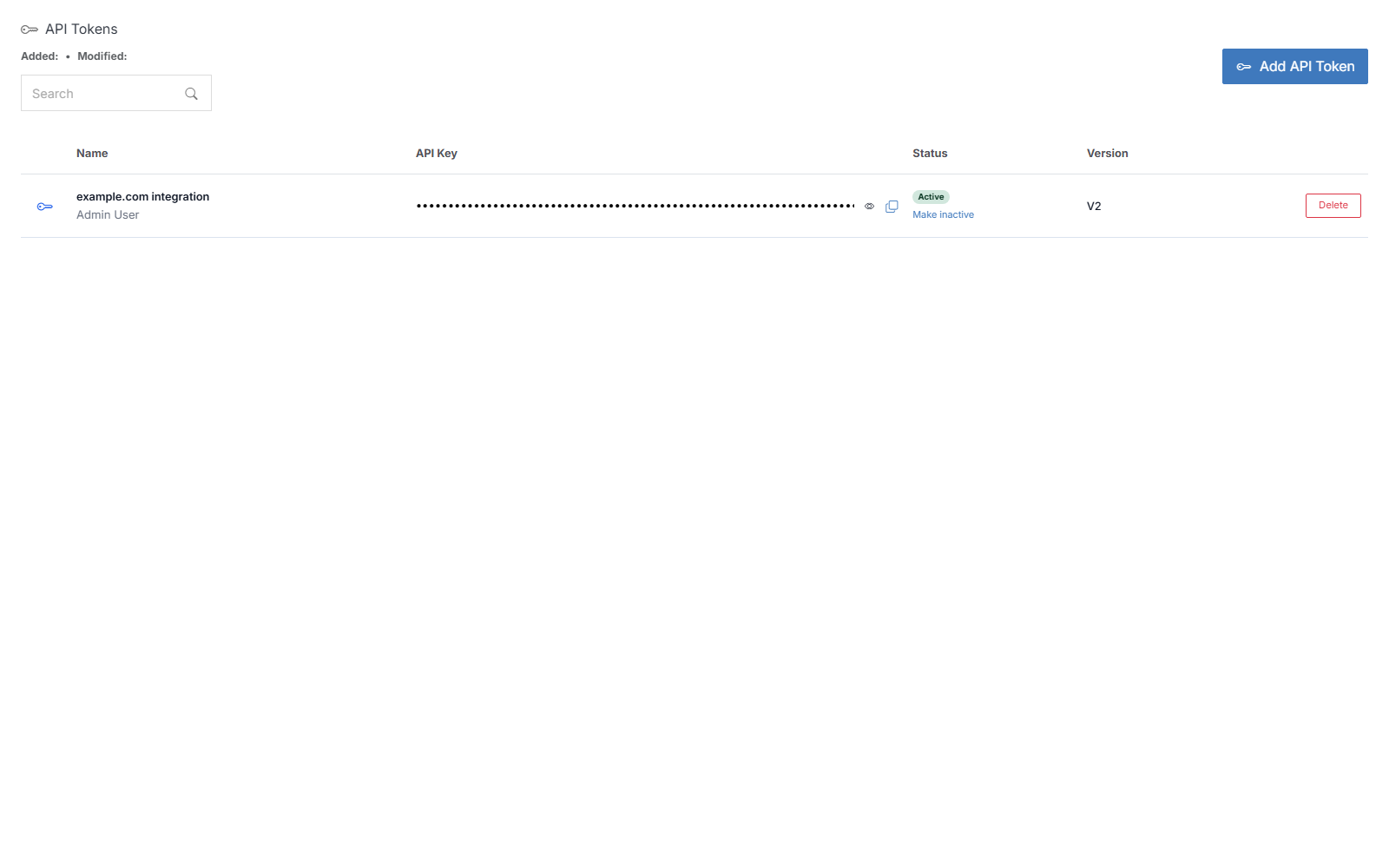
**Name** | **Description**
:--- | ---
Name | The name you gave the token when you created it.
API Key | The token itself. Hidden by default -- click the eye icon to reveal it, or the copy icon to copy it.
Status | **Active** or **Inactive**. Click **Make inactive** / **Activate** to toggle it.
Version | The API version this token is scoped to.
Delete | Permanently remove the token.
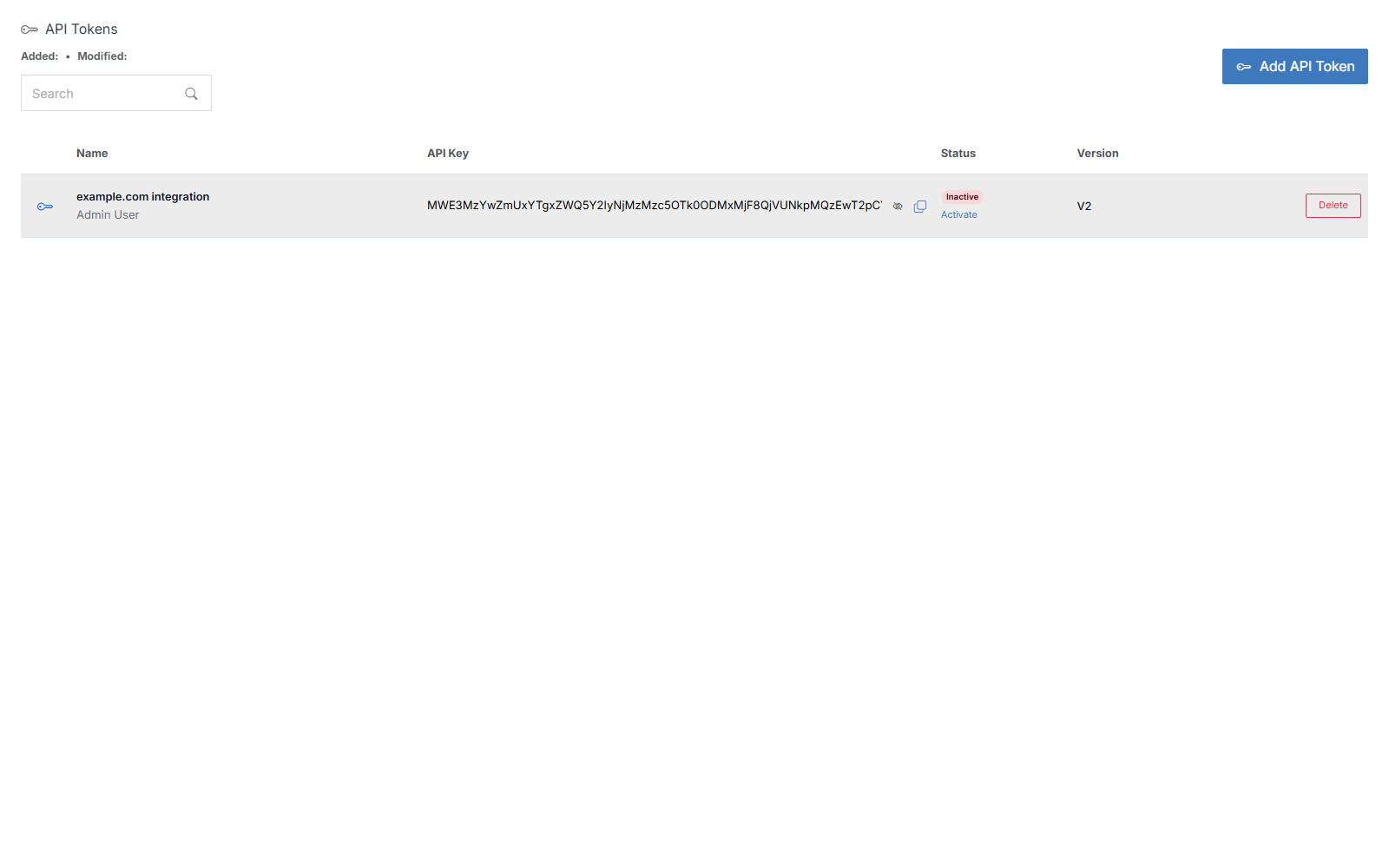
## Add Token
Click **Add API Token**.

**Name** | **Description**
:--- | ---
Name | Optional name to help you identify this key.
Click **Submit** to create the token.
## Change status
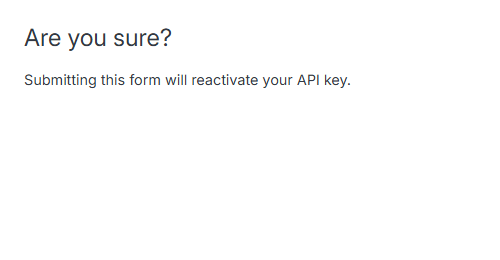
Click **Make inactive** (or **Activate**, if it's already inactive) next to a token. Confirm on the flyout that appears.
!!! Note:
Deactivating a token immediately stops it from working -- you won't be able to use that API key until you reactivate it. Deleting a token cannot be undone; once removed, you'll need to create a new one.
!!!
## Delete
Click **Delete** next to a token, then confirm. This can't be undone -- the key will need to be re-added if you need it again.