# Two-Factor Authentication
Solodev CMS supports Two-Factor Authentication (2FA) using a standard authenticator app (any TOTP app -- Google Authenticator, Microsoft Authenticator, Authy, etc.). Enabling it adds a second check beyond your password when you sign in.
## Enable 2FA
1. Go to the **Security** page and click **Enable 2FA**.
2. On the **Set Up Two-Factor Authentication** screen, scan the displayed QR code with your authenticator app, or enter the secret key manually.
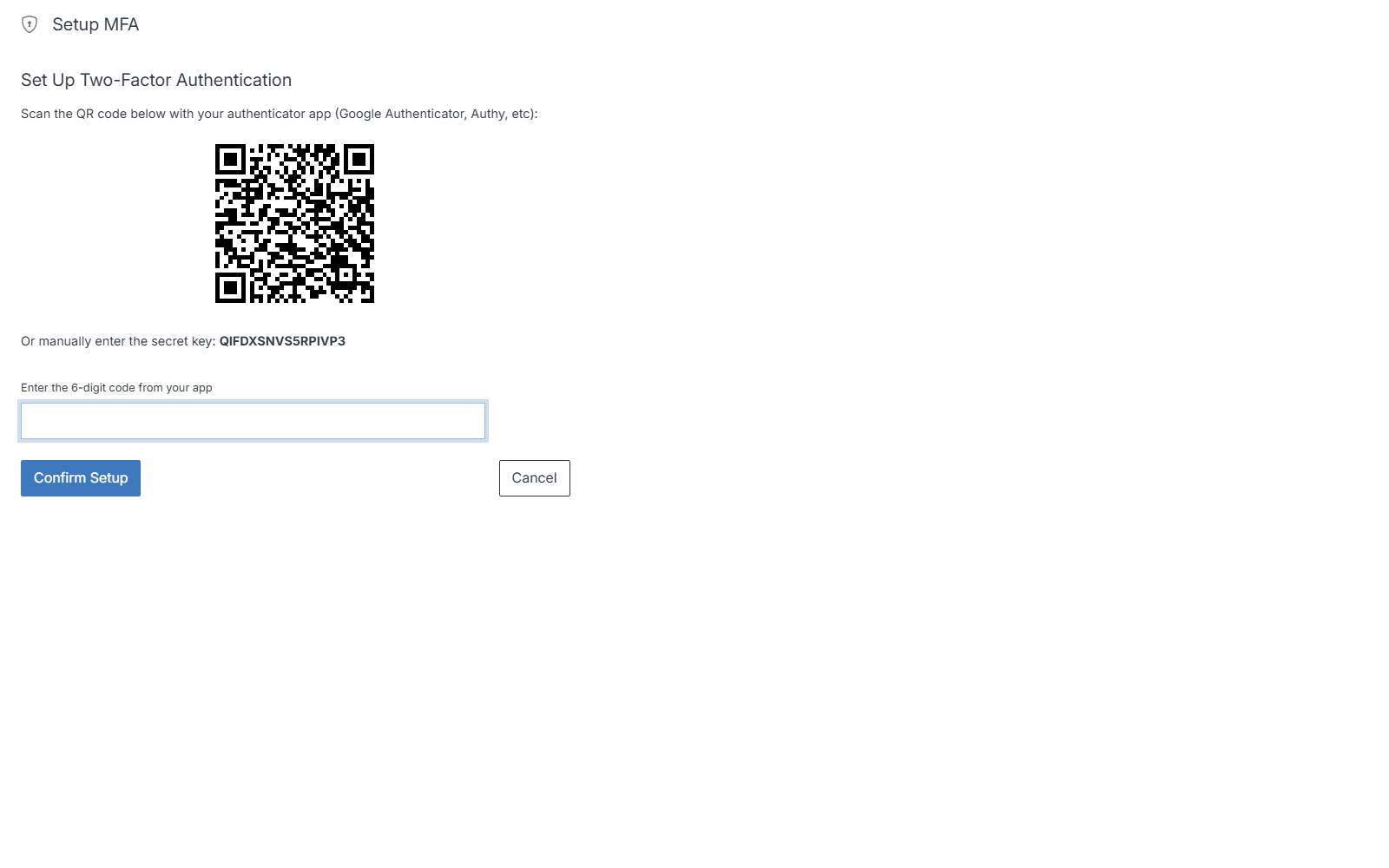
3. Enter the 6-digit code from your app and click **Confirm Setup**.
!!! Note
If you start setup and change your mind, click **Cancel** rather than leaving the screen open. An unconfirmed setup does not enable 2FA on your account.
!!!
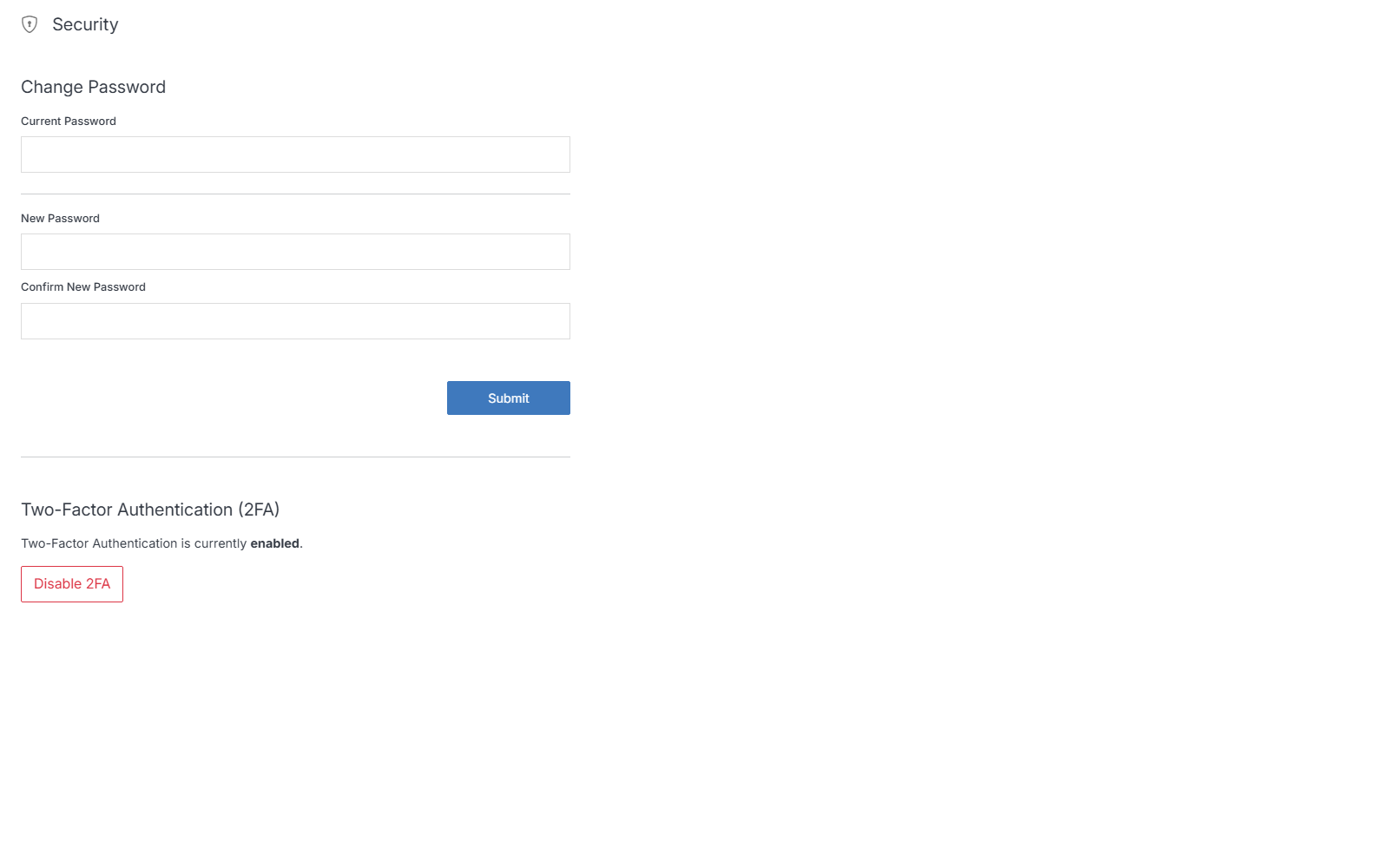
Once enabled, the Security page shows **Two-Factor Authentication is currently enabled**, and you'll be prompted for a 6-digit code from your authenticator app after your password on future sign-ins.
## Disable 2FA
Go to the **Security** page and click **Disable 2FA**. Do this only if you're certain -- while 2FA is off, your account relies on your password alone.
## Losing access to your authenticator app
If you can no longer generate codes (lost phone, deleted app, etc.), you cannot disable 2FA yourself without being able to sign in. Contact a CMS administrator who can access your account to disable 2FA on your behalf, then re-enable it with a new device.
!!! Tip
Before traveling or replacing your phone, confirm your authenticator app has cloud backup enabled, or note down its recovery/backup codes if it offers them. Solodev's 2FA setup itself does not issue separate backup codes -- your authenticator app is the only source of your codes.
!!!