# Folder Overview
Click into the **web files** or **www** folder from a website's [Website Overview](/websites/website-overview/) to manage its contents: add pages, files, and subfolders, upload assets, and set permissions.
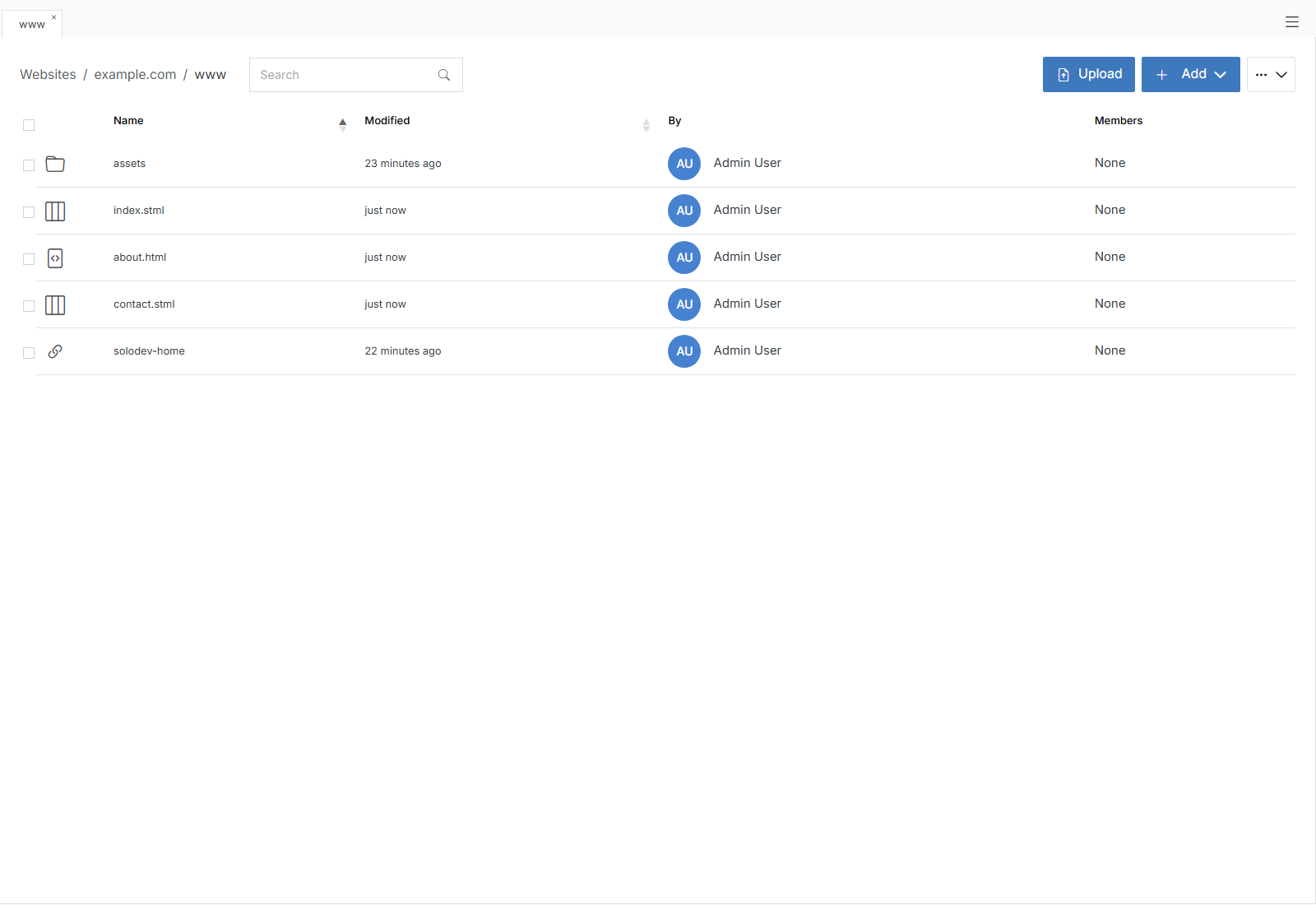
**Name** | **Description**
:--- | ---
[Upload](/websites/folder-overview/upload/) | Drag and drop or browse files into your folder.
[Add Folder](/websites/folder-overview/add-folder/) | Create a new subfolder and add specific details like name and title.
[Add File](/websites/folder-overview/add-file/) | Add an HTML, Template Code, or README file to the folder.
[Add Page](/websites/add-page/) | Add a new page (www folder only).
[Add Link](/websites/folder-overview/add-link/) | Add and rank a link and control properties such as opening in a new window.
[Add Category](/websites/folder-overview/add-category/) | Group and organize content items in categories.
Copy | Duplicate the folder.
Move | Relocate the folder elsewhere in your website.
Delete | Permanently delete the folder.
**Upload** and **+ Add** sit directly in the folder's toolbar. Click the **...** menu next to them for the rest:
**Name** | **Description**
:--- | ---
[Update](/websites/folder-overview/update-folder/) | Change the folder's name, title, and other properties.
[Stage](/websites/folder-overview/stage/) | Stage all pages and files in the folder immediately — no confirmation form.
[Publish](/websites/folder-overview/publish/) | Publish all pages and files in the folder immediately — no confirmation form.
[Permissions](/websites/folder-overview/permissions/) | Manage user access to files and folders with specific roles.
!!! Note
File Groups, Experiments, and Scheduler are also inserted into a folder, but they're documented under [Engage](/engage/) alongside the rest of that section: [Add File Group](/engage/file-group/add-file-group/), [Add Experiment](/engage/experiment/add-experiment/), [Add Scheduler](/engage/scheduler/add-scheduler/).
!!!
## Members
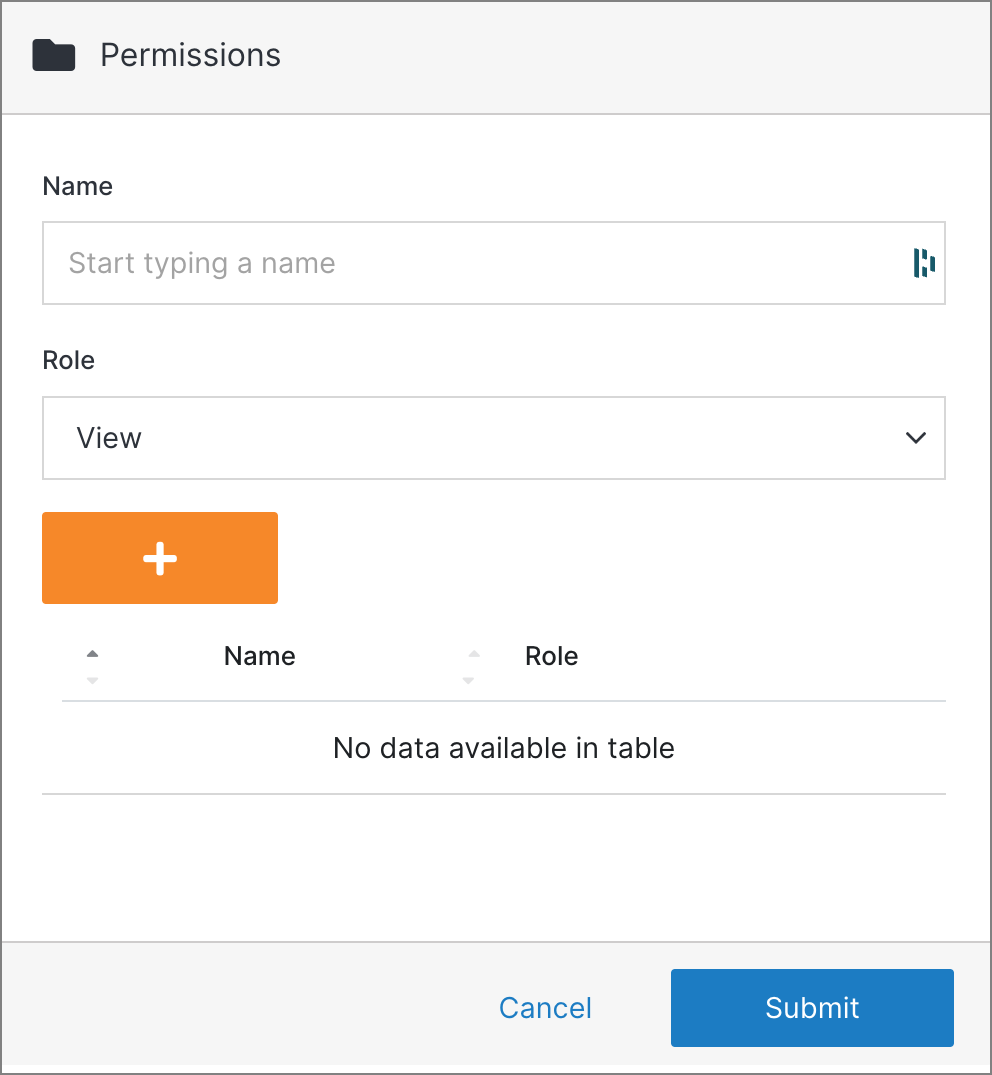
Manage the folder access permissions for users and groups.
**Name** | **Description**
:--- | ---
Name | Enter the name of a member you want to add to your group.
Role | Assign a View, Stager, Editor, or Admin role to a new or existing member via the dropdown menus.
Add | Click the orange **'+'** button to add a new member to your group.
Delete | Click the **'x'** on the right side of the table to remove a member from your group.
Confirm | Once you have completed all the fields, click **Submit** to apply your changes.
!!! Note:
A group or group member can be assigned one of four roles in Solodev CMS:
* **View:** Allows a member to see items and content.
* **Stager:** Enables a member to create or modify content but not publish.
* **Editor:** Gives a member the ability to view, create, edit, and publish.
* **Admin:** Provides complete editorial control and management of group members.
!!!