# File
Insert an HTML or Template Code file from your website's web files — useful for reusable page structure like a base template, header, or footer.

**Step 1**: While editing a page, find the vertical icon rail on the left edge of the page canvas. File is the third icon from the top.
**Step 2**: Drag it onto an empty region of the canvas. This opens **Select File**.
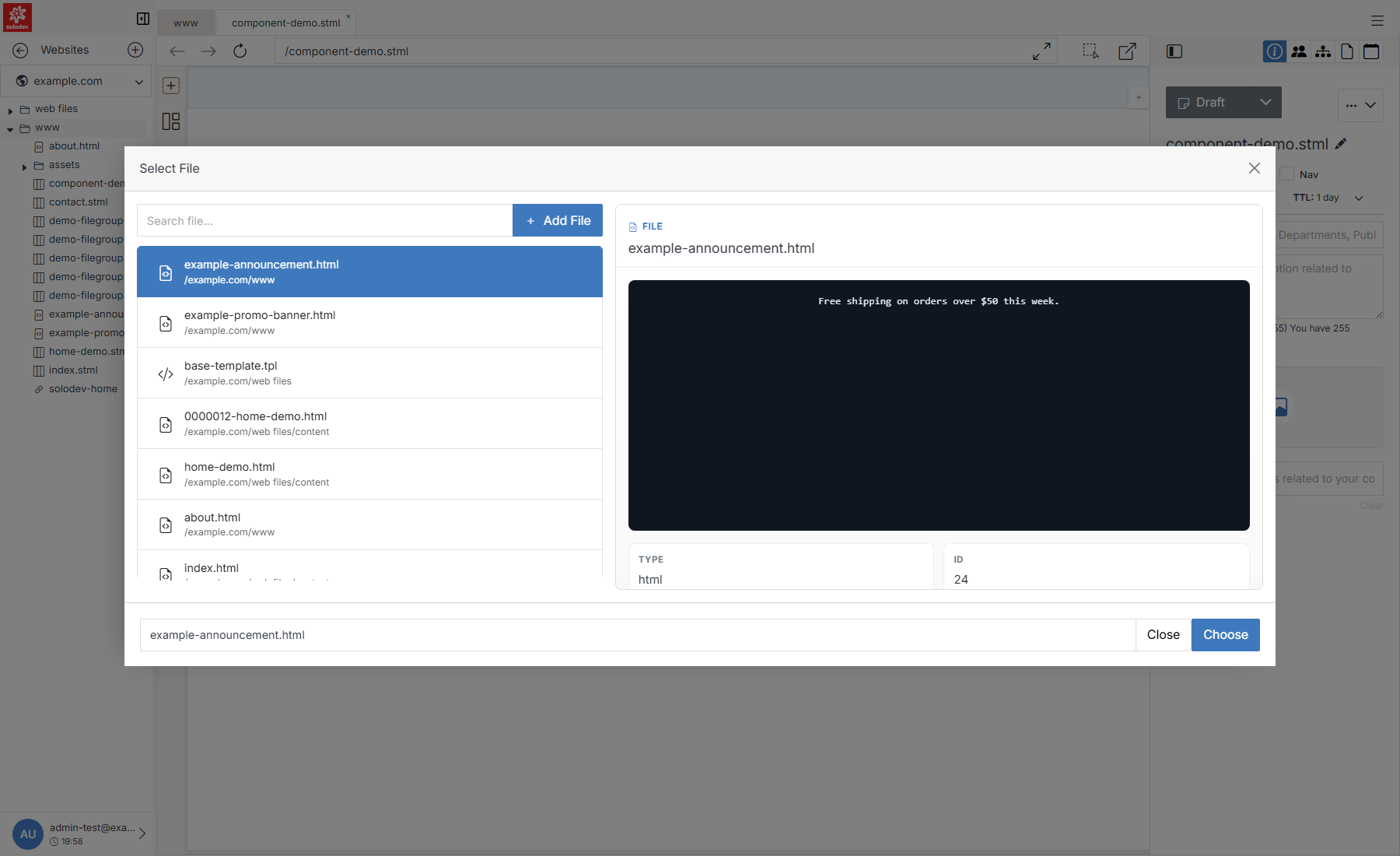
**Name** | **Description**
:--- | ---
Search file | Filter the list by name.
[Add File](#quick-add) | Create a new file on the spot if the one you need doesn't exist yet.
Results list | Files from your website's [web files](/websites/file-overview/), grouped by location.
Preview pane | Selecting a file previews its code alongside its Type, ID, Module, Location, Title, Modified, Added, and Parent Folder.
Choose | Insert the selected file at the drop location.
## Quick Add
If nothing in the list fits, click **+ Add File** to create one without leaving the page.
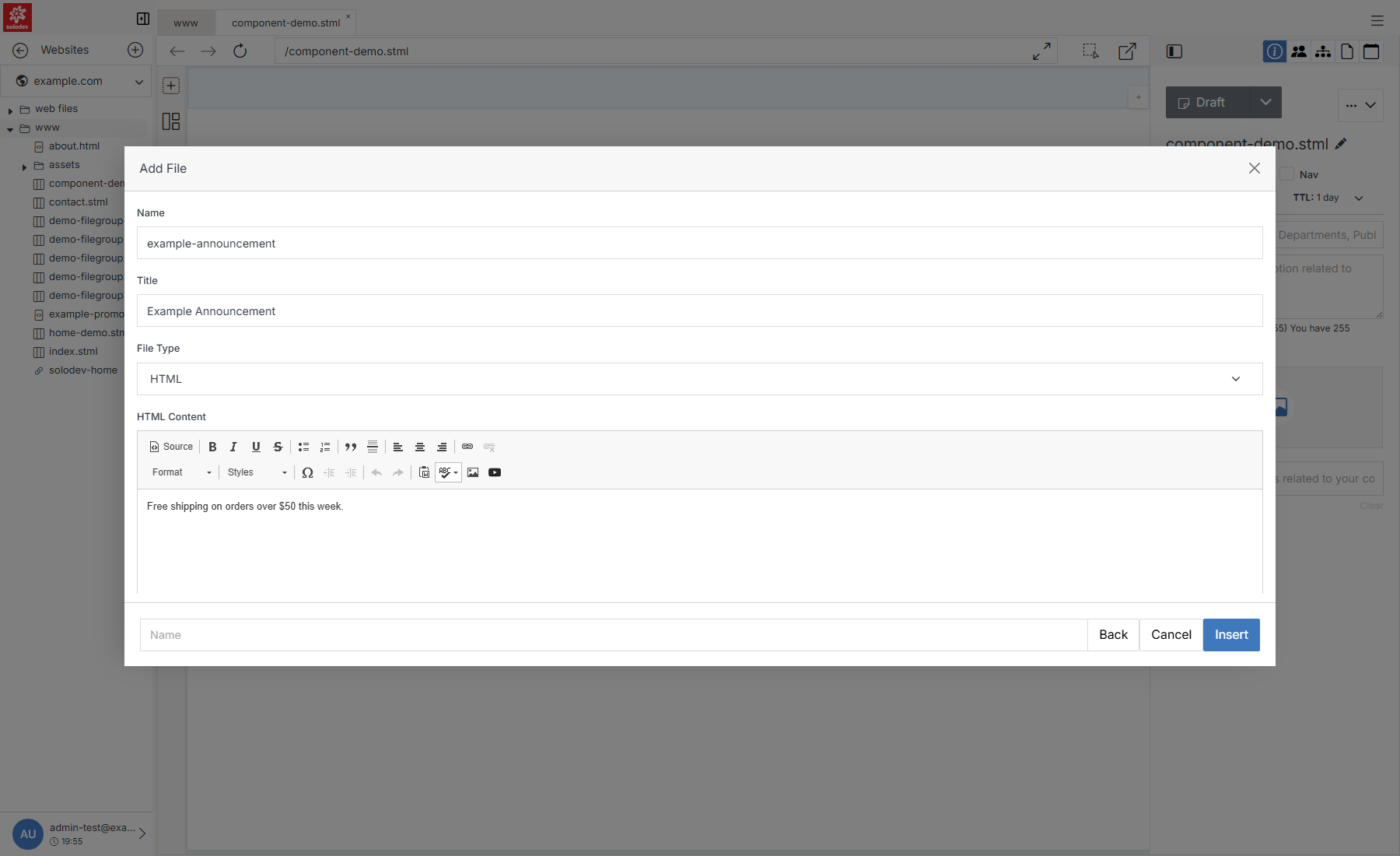
**Name** | **Description**
:--- | ---
Name | The file's internal name. Lowercase, letters/numbers/hyphens only.
Title | The file's display title.
File Type | HTML, Template Code (.tpl), README, or Upload File (attach an existing file instead of writing content here).
HTML/Template Content | A rich-text editor for the file's actual content — use the **Source** button to edit raw markup directly.
Insert | Creates the file and returns you to **Select File** with it selected.