#

<link rel="stylesheet" href="/static/custom.css">

<div class="header">
  <div class="inner">
    <img src="../../../images/modules/team/team.svg" alt="Two users icon" style="width: 80px;">
    <div>
      <h1>Team</h1>
      <p>Introduce the people behind your organization with professional team profiles.</p>
    </div>
  </div>
  <a href="https://solodev-team.s3.amazonaws.com/releases/team-latest.zip" class="btn-blue-lg"><span><svg xmlns="http://www.w3.org/2000/svg" viewBox="0 0 16 16" width="20" height="20" fill="#fff"><path d="M2.75 14A1.75 1.75 0 0 1 1 12.25v-2.5a.75.75 0 0 1 1.5 0v2.5c0 .138.112.25.25.25h10.5a.25.25 0 0 0 .25-.25v-2.5a.75.75 0 0 1 1.5 0v2.5A1.75 1.75 0 0 1 13.25 14Z"></path><path d="M7.25 7.689V2a.75.75 0 0 1 1.5 0v5.689l1.97-1.969a.749.749 0 1 1 1.06 1.06l-3.25 3.25a.749.749 0 0 1-1.06 0L4.22 6.78a.749.749 0 1 1 1.06-1.06l1.97 1.969Z"></path></svg></span>DOWNLOAD</a>
</div>

The Solodev Team Module makes it easy to showcase the people behind your organization. Add photos, titles, bios, and contact details to help visitors get to know your team.

* **Create and manage team profiles with ease** – Add, edit, and remove team members quickly through an intuitive module. Keep profiles current as roles change and new people join.

* **Fully customizable structure and categories** – Organize team members by department, leadership, or board. Control how profiles are displayed and make it easy for visitors to find the right person.

* **Build trust with your audience** – Put a face to your organization with clear, professional profiles. Help visitors connect with the people who serve them.

## Prerequisites

- Have a [Solodev CMS](/quickstart).
- Have a [Website](/websites/add-website/).

!!!Note: 
We use Bootstrap 5 in our packages. You can update your code to match your own framework, styles, or preferences as needed.
!!!

## Step-by-Step Setup Guide

These steps will guide you through the process of installing the Team Module and getting it live on your page.

{% tabs %}

{% tab title="Step 1: Install the Team Module" %}

1. Navigate to Modules
<ul style="padding-left: 50px;">
  <li>In your CMS dashboard, click <strong>Modules</strong> in the left navigation menu</li>
  <li>Click the <strong>Add Module</strong> button</li>
</ul>

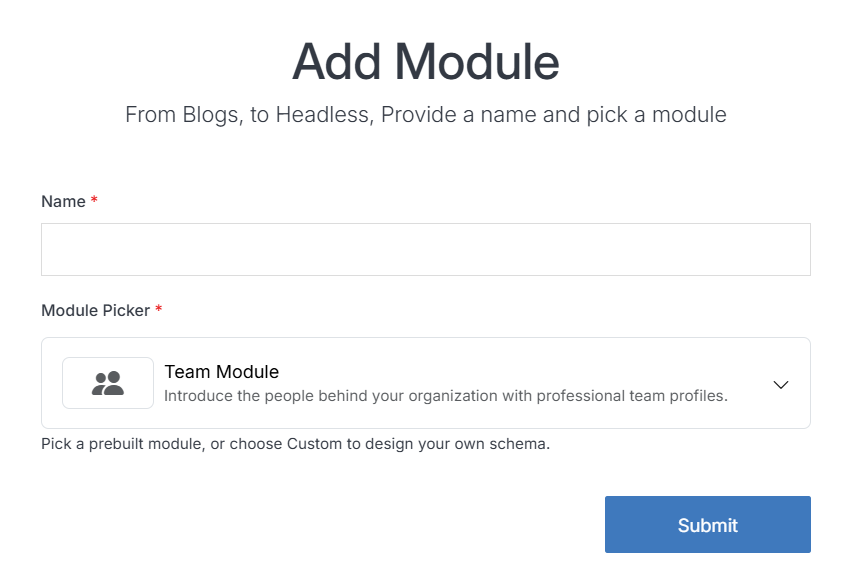
2. [Add the module](/modules/add-module/)
<ul style="padding-left: 50px;">
  <li>Give your team module a name</li>
  <li>Select the Team Module from the Module Picker</li>
  <li>Click <span class="text-blue">Submit</span>.</li>
</ul>

<p><img src="../../../images/modules/team/add-team.png" alt="Add Team" class="border" style="max-width: 60%;"></p>

!!!Note:
The module includes pre-built entries that you can personalize by editing the module content.
!!!

{% endtab %}

{% tab title="Step 2: Create your Team List Page" %}

1. Navigate to `Websites > example.com > web files > content`
<ul style="padding-left: 50px;">
  <li><a href="/websites/folder-overview/add-folder/">Create a folder</a> called <code>team</code></li>
  <li>In the team folder, <a href="/websites/folder-overview/add-file/">create a new code file</a> named <code>team-repeater.tpl</code></li>
</ul>

2. Add the team code using the example template provided below.

```html team-repeater.tpl
<div class="container">
  <ul class="list-group list-group-flush">
    [repeater id="" display_type="news" type="datatable" order="team_name asc"]
      <li class="list-group-item py-4 px-0">
        <div class="row align-items-center g-4 text-center text-md-start">
          <div class="col-md-3">
            <div class="ratio ratio-1x1">
              <img src="[get_asset_file_url id='{{team_image}}']" [is_set value="{{team_image_alt_tag}}"]alt="{{team_image_alt_tag}}"[else]alt="{{team_name}}"[/is_set] class="object-fit-cover">
            </div>
          </div>
          <div class="col-md-9 ps-md-4">
            <h3 class="fw-bold mb-1">{{team_name}}</h3>
            <p class="fs-5 text-body-secondary mb-3">{{team_position}}</p>
            <a href="tel:{{team_phone}}[is_set value='{{team_ext}}'],{{team_ext}}[/is_set]" class="d-block fs-5 text-body-secondary text-decoration-none mb-2">
              <i class="bi bi-telephone-fill me-2" aria-hidden="true"></i>{{team_phone}}[is_set value="{{team_ext}}"] ext. {{team_ext}}[/is_set]
            </a>
            [is_set value="{{team_email}}"]
              <a href="mailto:{{team_email}}" class="d-block fs-5 text-body-secondary text-decoration-none">
                <i class="bi bi-envelope-fill me-2" aria-hidden="true"></i>{{team_email}}
              </a>
            [/is_set]
          </div>
        </div>
      </li>
    [/repeater]
  </ul>
</div>
```

!!!danger Important!
You need to add the ID number of your team module to the repeater shortcode within the `id=""` attribute.
!!!

3. Click <span class="text-blue">Publish</span>.

4. Open your homepage `index.stml` or the desired page where you want to add the team listing.

5. [Insert your team file](/websites/page-overview/#add-a-file-to-page) into the page.

6. Click <span class="text-blue">Publish</span>.

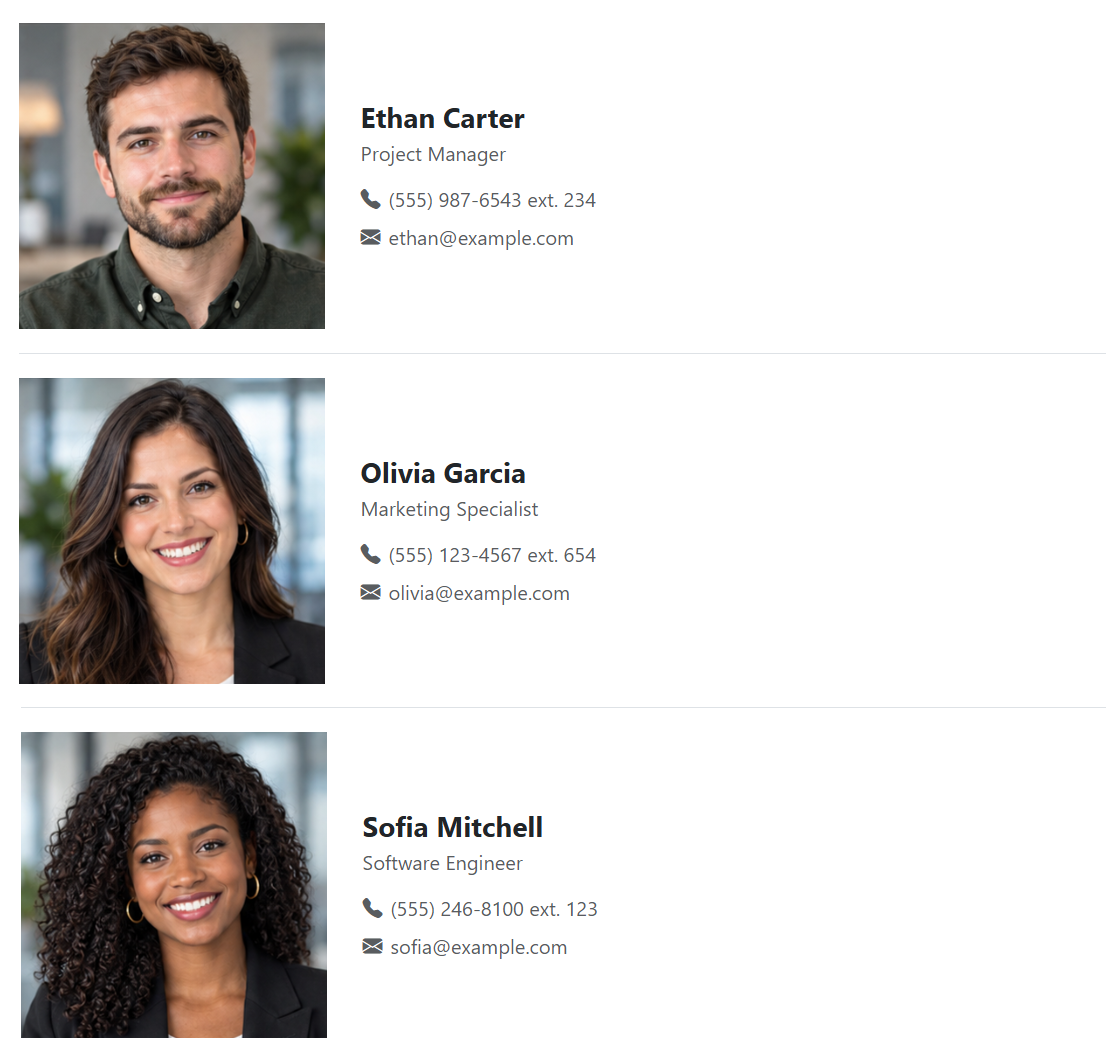
7. Go to your website and refresh the page to see your team in action.

<p><img src="../../../images/modules/team/team-repeater.png" alt="Team Listing" class="border"></p>

{% endtab %}

{% endtabs %}

## Support

Support for Team Module is handled directly through Solodev's global help desk. For more information regarding support queries, go to [www.solodev.com](https://www.solodev.com/).

!!!Note:
To learn more about shortcodes and how they work, visit our [shortcodes](/shortcodes) documentation.
!!!