# Group Overview
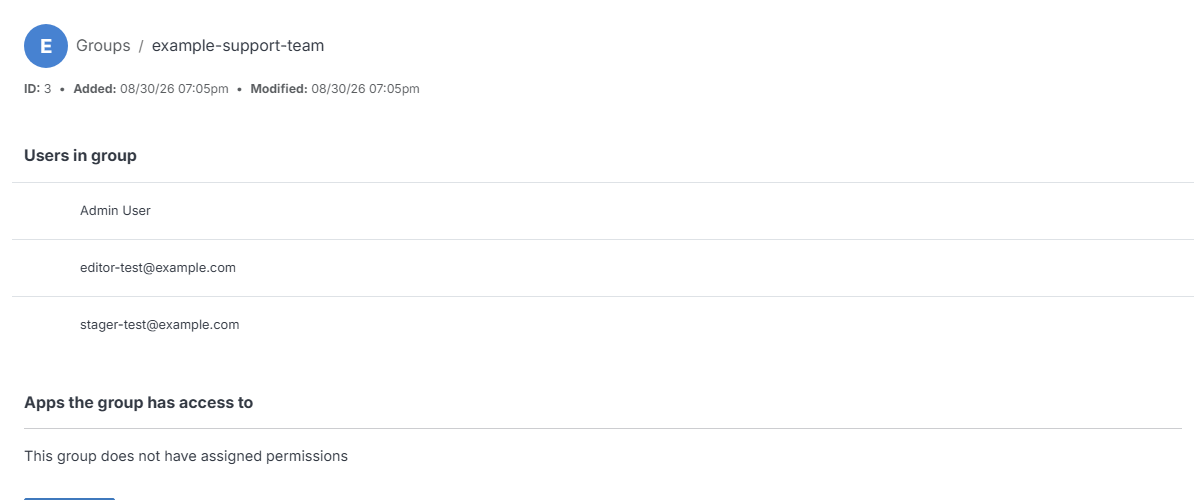
View and manage a specific group. Click a group's name from the [Groups](/organization/groups/) list to open it.
**Name** | **Description**
:--- | ---
Modify | Update the group's name, purpose, and team image.
Permissions | Review which apps and folders this group has access to.
## Users in group
Every member of this group. Click **Add User(s)** to add more, choosing a role (View, Stager, Editor, or Admin) for each.
## Apps the group has access to
Which apps this group can access. Click **Manage** to grant or change access.
!!! Note:
A group member's role can be one of four levels:
- **View:** Can see items and content.
- **Stager:** Can create or modify content but not publish.
- **Editor:** Can view, create, edit, and publish.
- **Admin:** Full editorial control and management of group members.
!!!