Submissions save as a Contact using the CMS's fixed, built-in schema. This is what the Type dropdown shows first.
Submissions save to a custom module with a schema you design yourself. This is the familiar, longer-standing pattern most users already know.
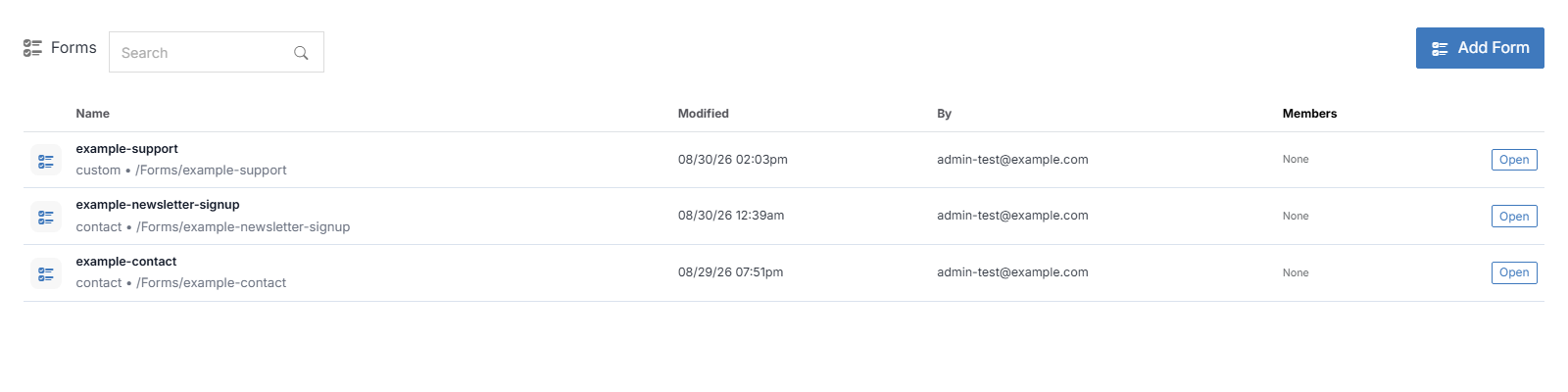 **Name** | **Description**
:--- | ---
[Add Form](/forms/add-form/) | Create a new form.
Location | Filter your list by selecting a location from the dropdown menu at the upper right.
Search | Locate a form in your system by entering its name in the search field at the upper right.
Click a form's name to open it and manage its submissions -- see [Form Overview](/forms/form-overview/).
## Member Permissions
Click on any of the icons under the member column in the table to add, remove, or manage user roles.
**Name** | **Description**
:--- | ---
[Add Form](/forms/add-form/) | Create a new form.
Location | Filter your list by selecting a location from the dropdown menu at the upper right.
Search | Locate a form in your system by entering its name in the search field at the upper right.
Click a form's name to open it and manage its submissions -- see [Form Overview](/forms/form-overview/).
## Member Permissions
Click on any of the icons under the member column in the table to add, remove, or manage user roles.
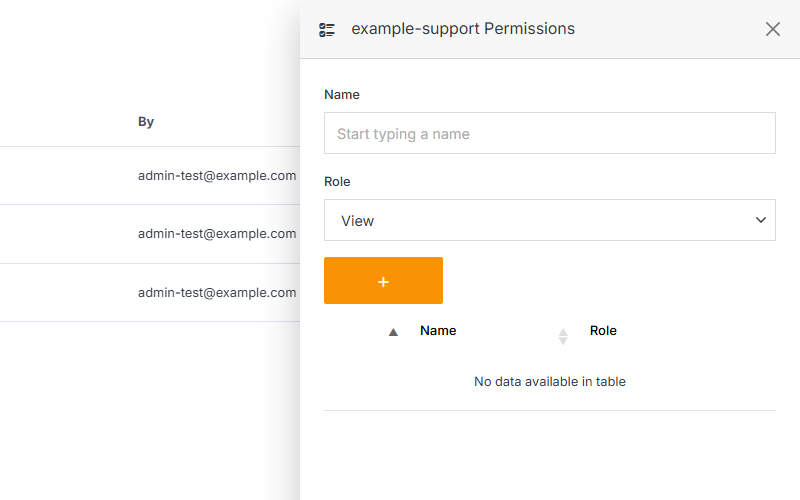 **Name** | **Description**
:--- | ---
Name | Enter the name of a member you want to add to your form.
Role | Assign a View, Stager, Editor, or Admin role to an existing member via the dropdown menus.
Add | Click the orange **"+"** button to add a new member to your form.
Delete | Click the **"x"** on the right side of the table to remove a member from your form.
Submit | Click **Submit** to apply your changes
!!! Note:
A form member can be assigned one of four roles:
* **View:** Allows a member to see items and content.
* **Stager:** Enables a member to create or modify content but not publish.
* **Editor:** Gives a member the ability to view, create, edit, and publish.
* **Admin:** Provides full editorial control and management of group members.
!!!
**Name** | **Description**
:--- | ---
Name | Enter the name of a member you want to add to your form.
Role | Assign a View, Stager, Editor, or Admin role to an existing member via the dropdown menus.
Add | Click the orange **"+"** button to add a new member to your form.
Delete | Click the **"x"** on the right side of the table to remove a member from your form.
Submit | Click **Submit** to apply your changes
!!! Note:
A form member can be assigned one of four roles:
* **View:** Allows a member to see items and content.
* **Stager:** Enables a member to create or modify content but not publish.
* **Editor:** Gives a member the ability to view, create, edit, and publish.
* **Admin:** Provides full editorial control and management of group members.
!!!