Add Form
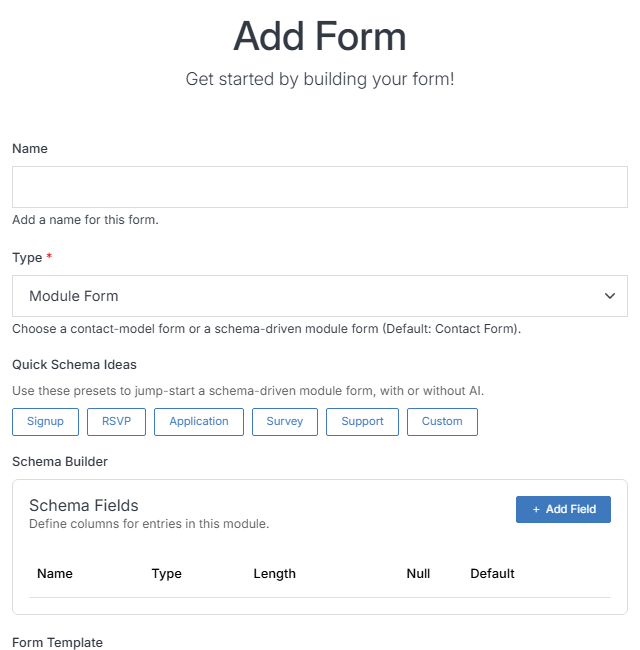
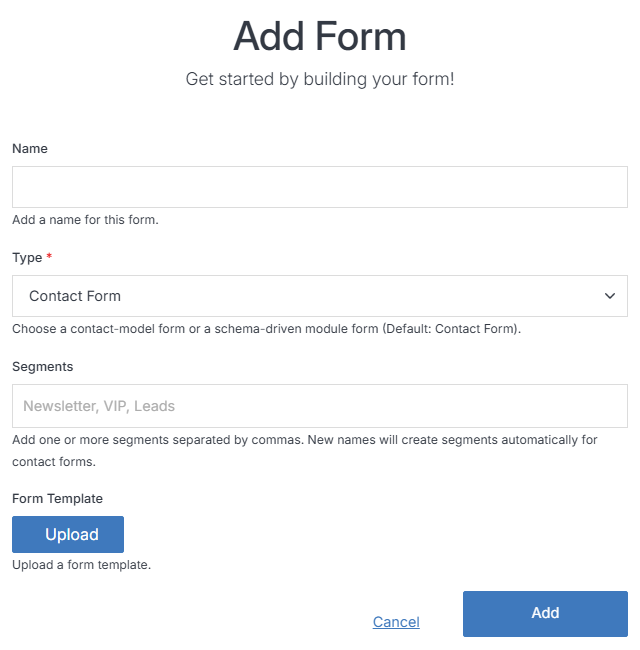
From the Forms list, click Add Form. The fields shown depend on which Type you pick -- Contact Form happens to be what the dropdown shows first, but that's not a recommendation either way; see the note on Forms for guidance on picking one.
Contact Form
Submissions save as a Contact using the CMS's fixed, built-in schema.
Module Form
Submissions save to a custom module with a schema you design yourself.
Contact Form
Submissions are saved as Contacts using the CMS's fixed, built-in contact schema — no new database table is created.
Module Form
Submissions are saved to a custom module with a schema you design yourself — the same schema builder used by Add Module. Every Module Form creates its own database table, so reserve this for structured, non-personal data (an RSVP count, a survey response) rather than anything that includes someone's name, email, or other personal details — unless you turn on Sync entries to CMS Contacts below, which is exactly for that case; see the note on Forms for why.