Add Module
From the Modules list, click Add Module to create a new low-code module. There are two ways to fill out the Module Picker, depending on whether you want a ready-made schema or one you design yourself.
Calendar vs. datatable modules
A module is calendar-style when Content is schedulable is checked in Schema Builder. When this option is unchecked, the module is datatable-style. This checkbox determines the module's behavior—there is no separate module type to select.
-
Schedulable (calendar-style): Each entry includes Start and Stop date fields and can be displayed in either a calendar or list view. Blog, Events, and News are schedulable by default because their content typically has a publish date and may have an end date.
-
Not schedulable (datatable-style): Entries do not include date fields and are displayed as a standard list or table. Quick Links and FAQ are datatable-style by default because their entries do not typically require a publish window.
The setting also determines the URL pattern used by the module's overview page: /modules/calendar/<id> for calendar-style modules and /modules/datatable/<id> for datatable-style modules. Access the overview page by clicking the module's name from the Modules list.
Starting from a prebuilt module
Pick one of the ready-made types and the form collapses down to just Name and Module Picker. The schema (columns, field types, whether it's schedulable) is already defined for you.
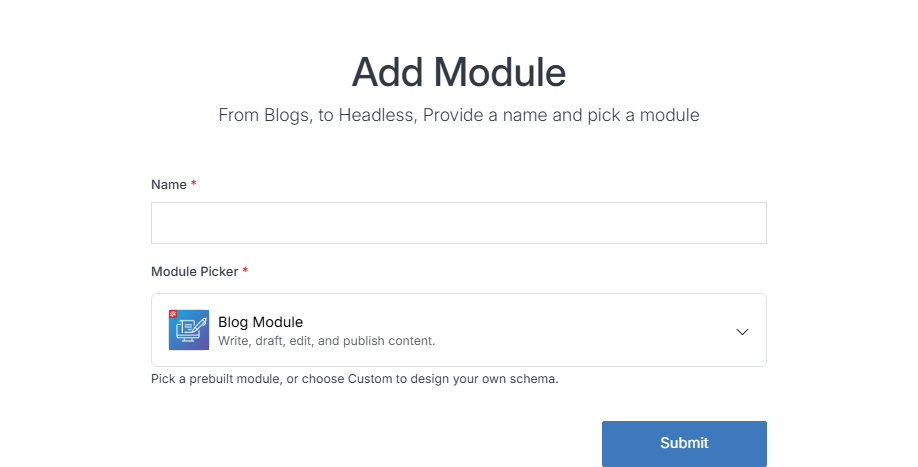
All six named types (everything but Custom Module) come from Solodev, not something your organization defines — if none fits, choose Custom Module and build your own schema.
Building a Custom Module
Choose Custom Module (the default) to design your own schema from scratch. The rest of the fields below only appear in this path.
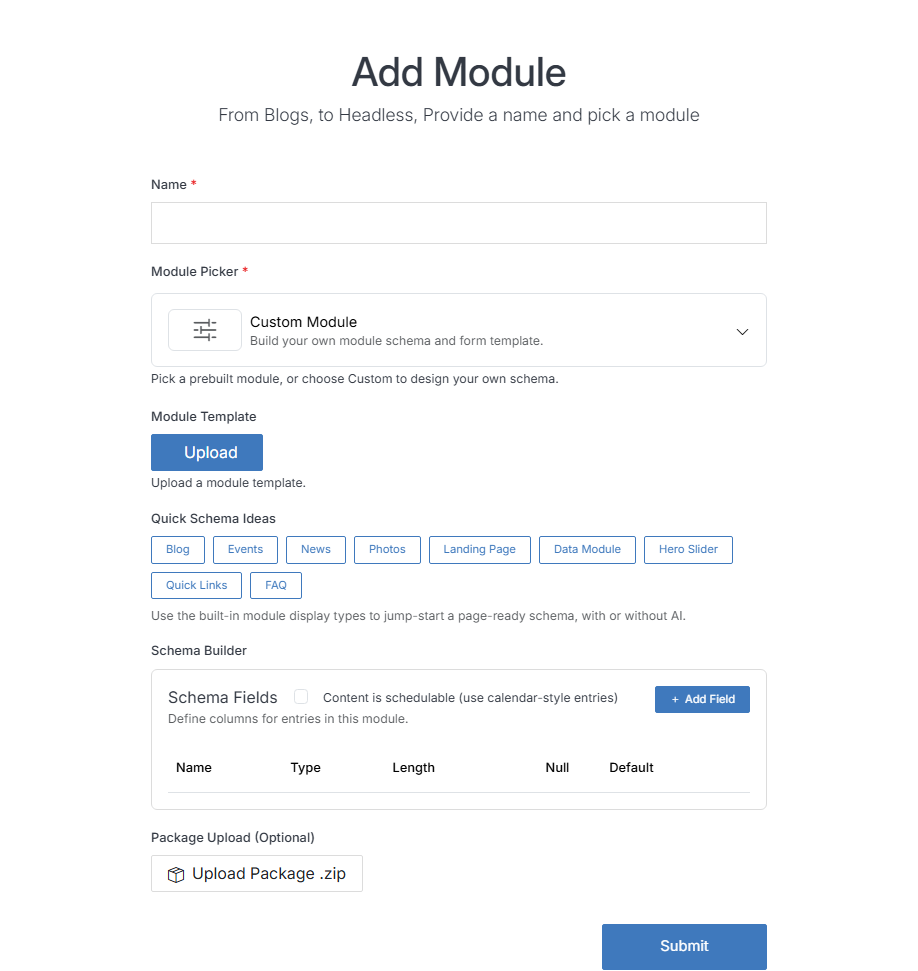
Click Submit to create the module. You'll land on its module dashboard, ready to add entries.


