
Workflow
Automatically email someone when a submission comes in — optionally only when a specific field matches a value.
From the form's overview page, open the ... menu and click WorkFlow.
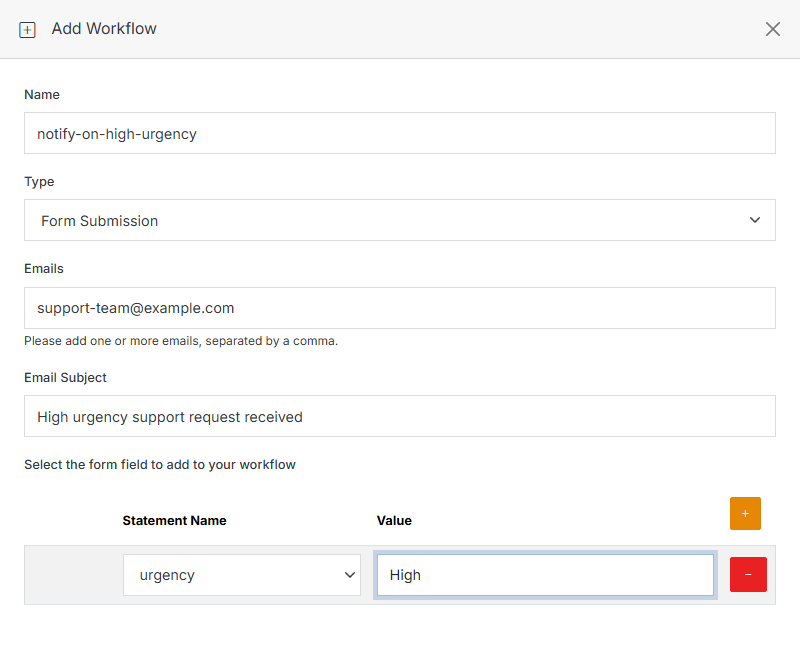
This is the same underlying automation engine as the org-wide Workflow settings — opening it from a form just pre-scopes a new rule to this specific form. A Module Form is a datatable-style module under the hood, so its Type dropdown is the same one described in Module Overview's Workflow — Form Submission below is the type you'll use most, but Submitted by user, Submitted by user from group, and Value contains are also available, plus the Task triggers described on the global Workflow page.
Add Workflow
Example: notify the support team by email only when a submission's Urgency field is "High".
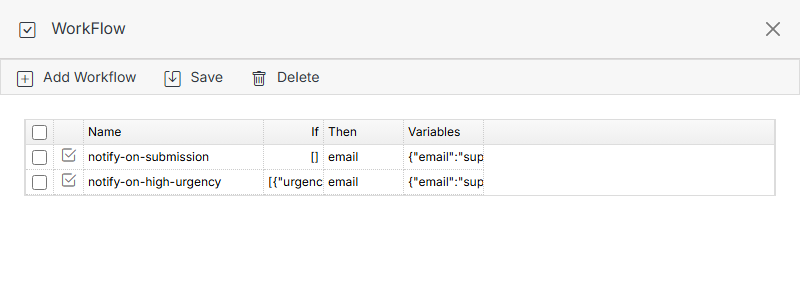
Submit to save. The list shows each rule's If (the condition, or [] if unconditional), Then (the action — email), and Variables (the notification details) as raw data, matching what's stored.