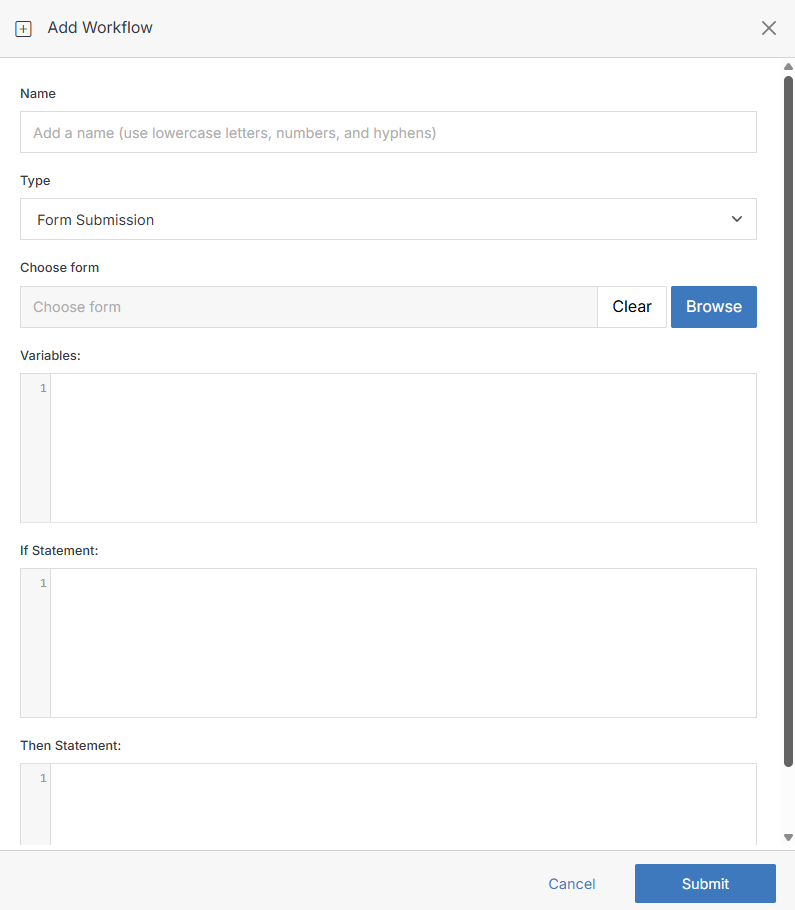
Add Workflow
From Workflow, click Add Workflow. The fields shown depend on which Type you pick.
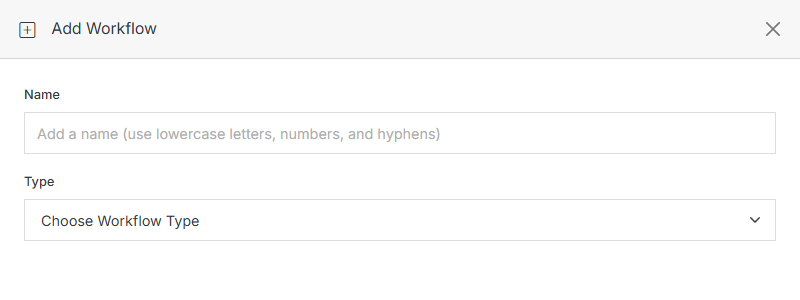
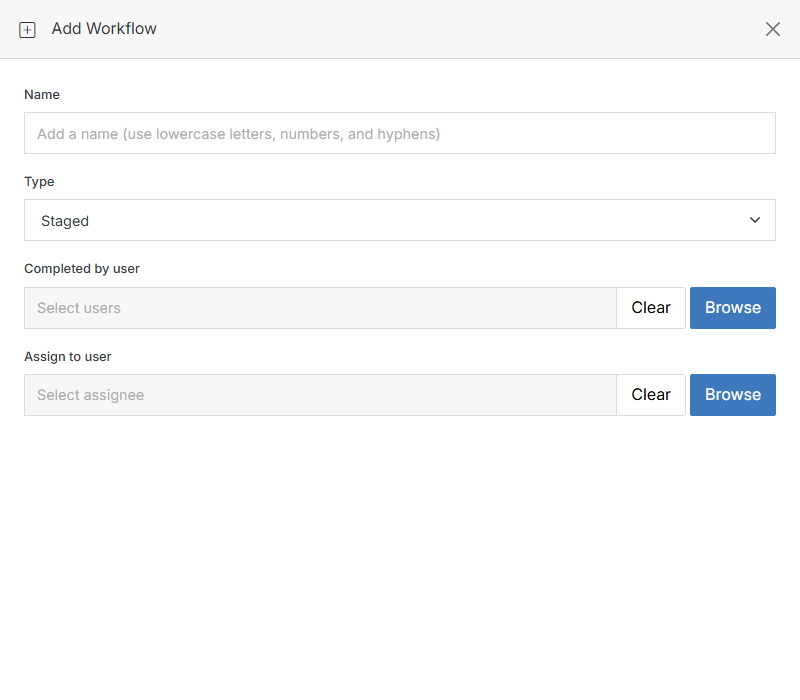
File triggers: Saved, Staged, Published
Fires when a file changes state.
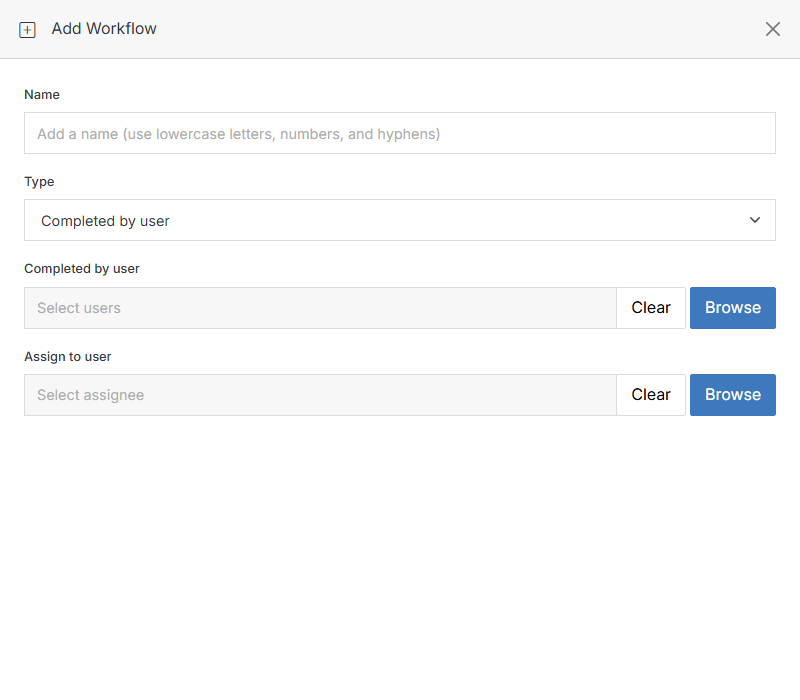
Task triggers: Completed by user, Completed by user from group
Fires when a task is marked complete, either by a specific user or by any member of a group.
Form Submission
Fires when a form is submitted — optionally only when a submitted field matches a value. See Form Overview's Workflow for the full walkthrough with a real example, including its Emails/Email Subject/condition-builder fields, since opening Add Workflow from a form pre-fills this Type and scopes the rule to that form.