
View as Customer
Solodev CMS supports a read-only Customer Impersonation tool so a super admin can see a frontend contact's storefront exactly as that customer sees it — useful for troubleshooting a reported issue without asking the customer for their password.
Note
Impersonation is restricted to super admins. It is intentionally not available to regular Admin, Editor, Stager, or View roles.
Start an impersonation session
- Go to Organization > Contacts and open the contact you need to view as.
- Open the ... menu on the Contacts Overview and click View as Customer.
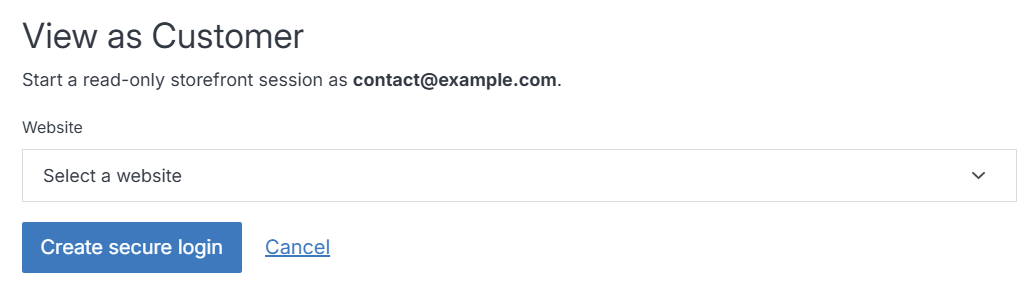
- On the View as Customer screen, choose the website from the Website dropdown. Only websites with a resolvable public address are listed.
- Click Create secure login.
- The CMS opens a secure, single-use login into that customer's storefront session.
How it behaves
- Time-limited. The generated login token is valid for 60 seconds and can only be used once. If it expires before you use it, start the impersonation again.
- Read-only by design. The tool is intended for viewing the customer's experience, not for making changes as the customer.
- Not cached. Every response in the impersonation flow is sent with
no-store/no-cacheheaders so nothing about the session is retained by intermediate caches or the browser's back/forward cache. - Logged. Starting and stopping an impersonation session is logged with the admin's user ID and the contact's ID, so impersonation activity is auditable.
- Session takeover, not a second session. While impersonating, your session becomes the customer's session. Use the storefront's normal sign-out, or the impersonation stop action, to end it and return to your own session.
Ending impersonation
Sign out of the storefront session normally, or use the Stop Impersonation action if your site's storefront exposes one. Ending impersonation regenerates the session and clears the impersonation state — you will need to sign back in to the CMS to continue administrative work.
Note
The impersonation login currently redirects into a storefront route that is configured per deployment. If a support session doesn't land where you expect, confirm the configured redirect target for your site with your Solodev engineer.