
Publish
Automatically publish all pages and files in a designated folder.
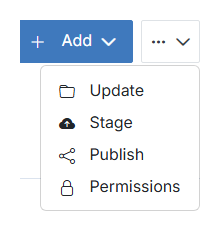
From the left tree, select the folder you wish to publish the contents of. Click the ... menu next to + Add, then click Publish. There's no confirmation form to fill out — this applies immediately.
Warning:
Publishing will apply to all pages and files within a selected folder. Make sure you are aware of the folder's contents — including any files that you wish to remain in draft or stage — before you click Publish.
Note:
On a large folder, publishing can take a few moments to finish. Avoid navigating away until it completes.