
Two Factor Authentication
Solodev CMS supports Two-Factor Authentication (2FA) using a standard authenticator app (any TOTP app -- Google Authenticator, Microsoft Authenticator, Authy, etc.). Enabling it adds a second check beyond your password when you sign in.
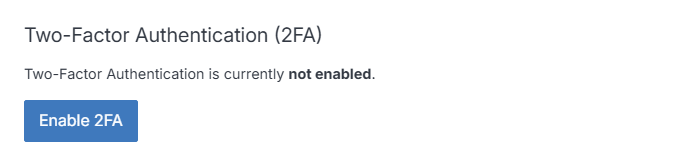
Enable 2FA
- Go to the Security page and click Enable 2FA.
- On the Set Up Two-Factor Authentication screen, scan the displayed QR code with your authenticator app, or enter the secret key manually.
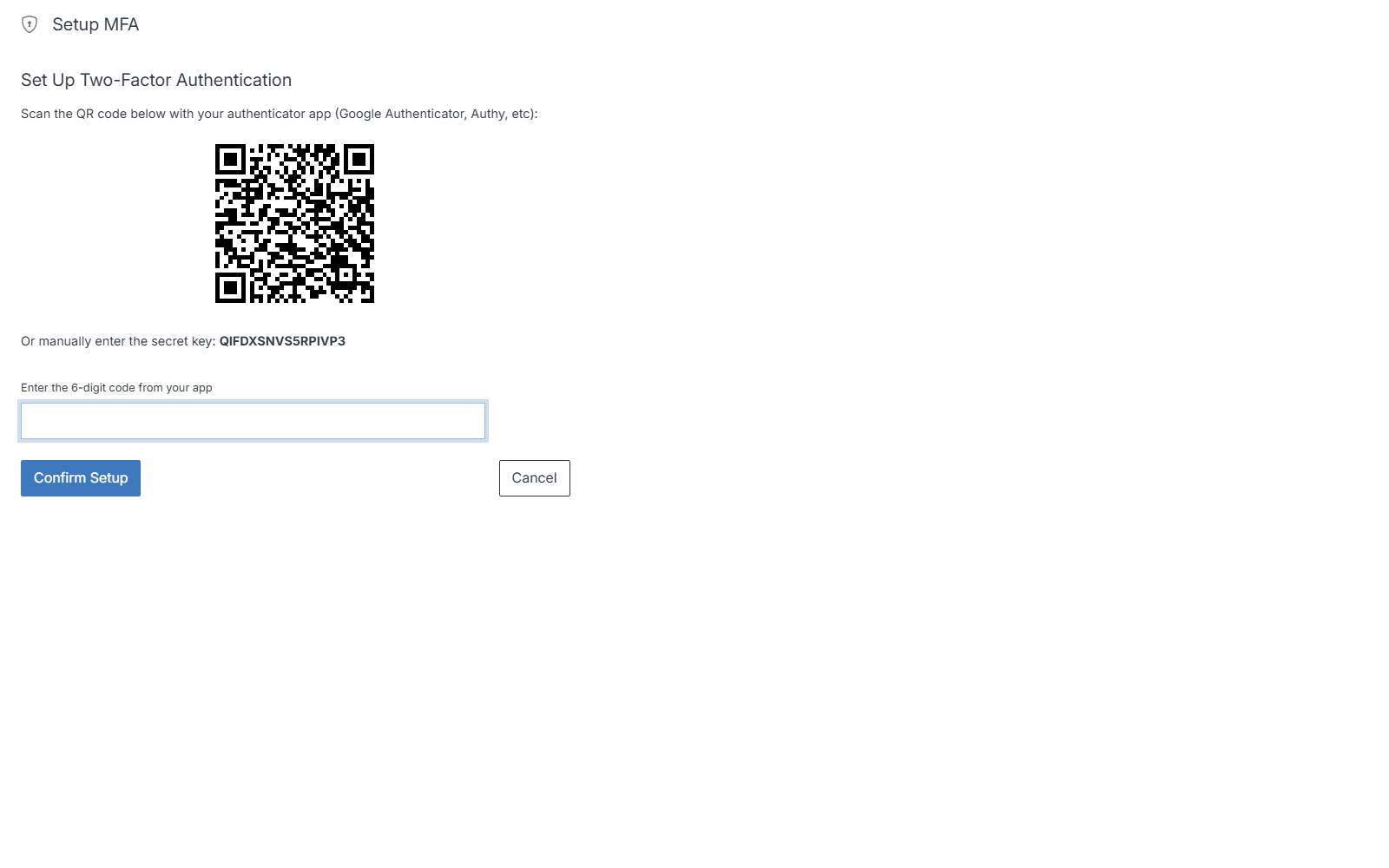
- Enter the 6-digit code from your app and click Confirm Setup.
Note
If you start setup and change your mind, click Cancel rather than leaving the screen open. An unconfirmed setup does not enable 2FA on your account.
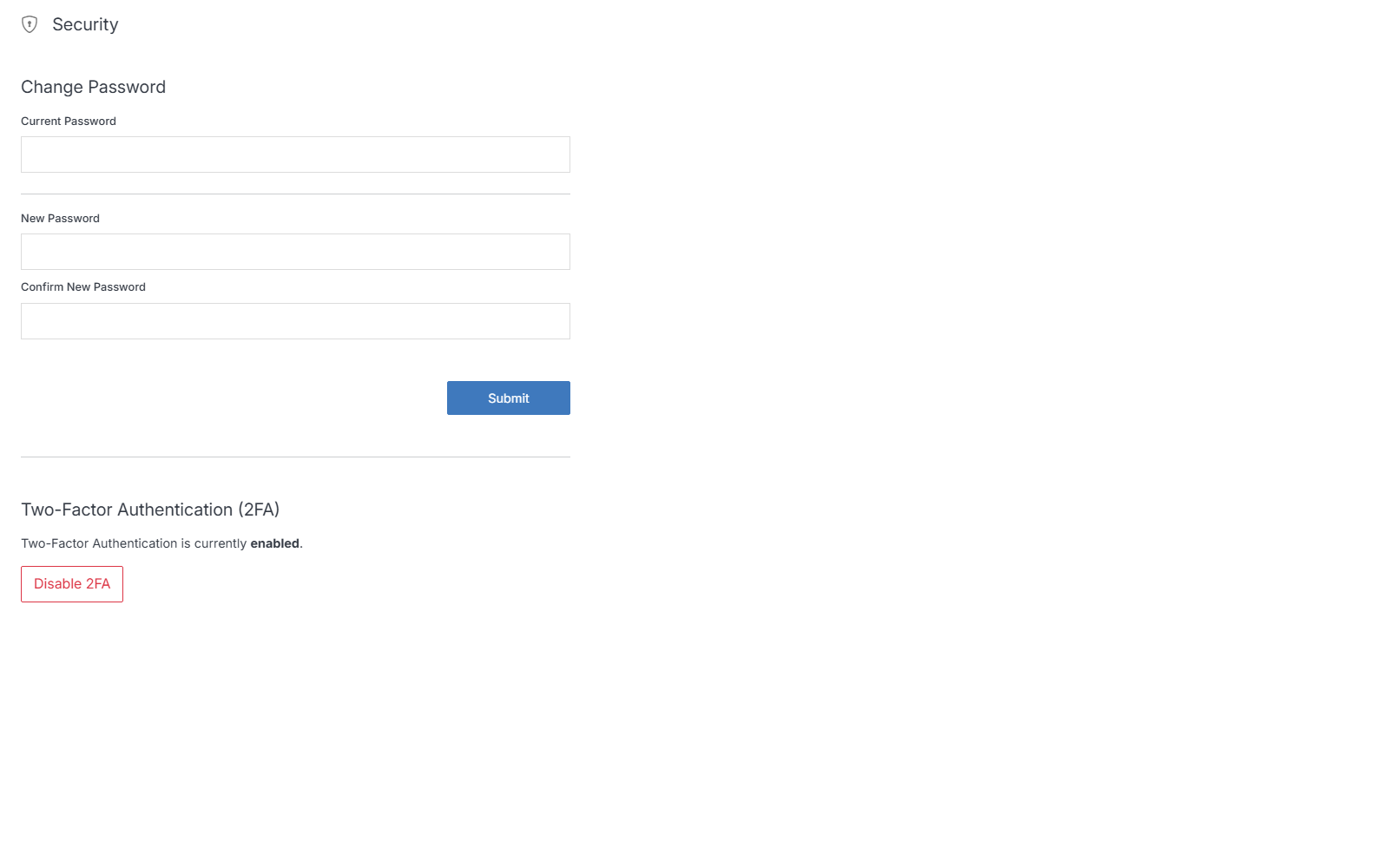
Once enabled, the Security page shows Two-Factor Authentication is currently enabled, and you'll be prompted for a 6-digit code from your authenticator app after your password on future sign-ins.
Disable 2FA
To turn off 2FA, go to the Security page and click Disable 2FA. Only do this if you're sure. Without 2FA, your account is protected by your password alone.
Losing access to your authenticator app
If you can no longer generate codes (lost phone, deleted app, etc.), you cannot disable 2FA yourself without being able to sign in. Contact a CMS administrator who can access your account to disable 2FA on your behalf, then re-enable it with a new device.
Tip
Before traveling or replacing your phone, confirm your authenticator app has cloud backup enabled, or note down its recovery/backup codes if it offers them. Solodev's 2FA setup itself does not issue separate backup codes — your authenticator app is the only source of your codes.