Update Folder

Folders are built in a nested tree hierarchy and serve as containers for all Solodev resources, including files and folders for the website(s). Modify and customize folders to suit your needs. A folder can be used as a company intranet document repository or to store HTML, TPL, and STML files destined for the web.

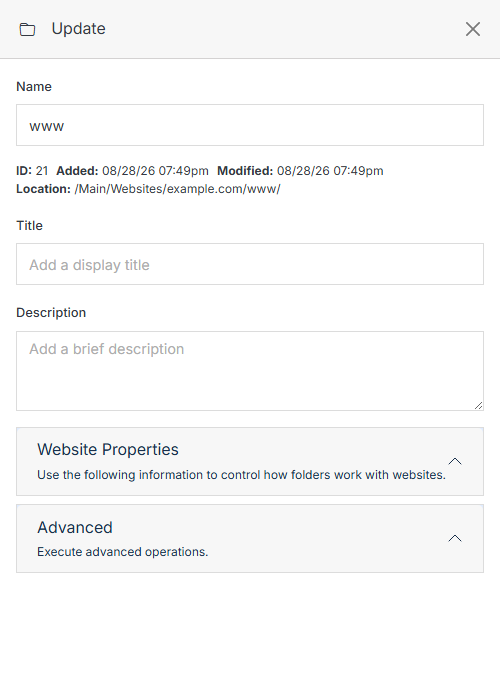
Update Folder form

Name Description
Name Update the folder name. The name of the folder should be lowercase and separated with dashes.
ID / Added / Modified / Location Read-only details about the folder: its internal ID, when it was created and last modified, and its full path.
Title Add or update the folder title. This will be the Title displayed on your site.
Description You can add or modify the folder description. This description can be utilized on your website's frontend or for organizational purposes.
Website Properties Manage website properties.
Advanced Execute advanced operations.
Submit Once you have completed all the fields, click Submit to apply your changes.

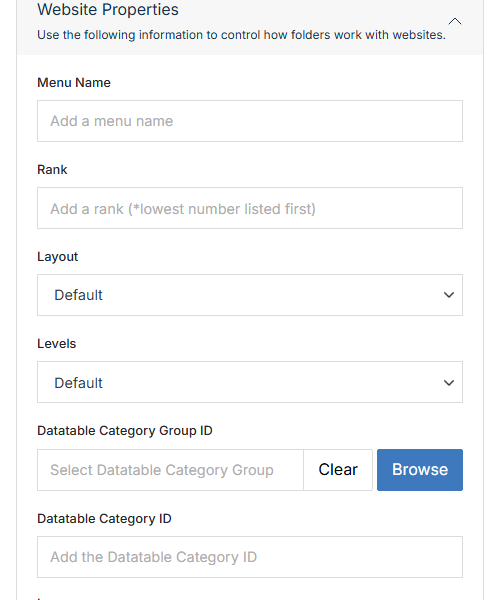
Website Properties

Control how folders work with websites.

Name Description
Menu Name If you'd like a different title to appear on the menu navigation than the folder title.
Rank Modify the rank to determine the folder's display order in the menu navigation. Lowest number listed first.
Layout How the contents of the folder are displayed in the navigation: Default, Basic, Content, Media, Thumbnails, Gallery, or Custom.
Levels How deep the elements in the folder will be displayed in the navigation: Default, 1, 2, or 3.
Datatable Category Group ID The ID for a group of categories. Click Browse and select the desired Category Group.
Datatable Category ID The ID for a specific category.
Image Click Upload Image to add or update the folder's image.
Include in Website Navigation Mark this option to structure the folder to display in navigation menus.
Restrict Access in Website to Authorized Users Allows access to the folder and contents to be password protected for website visitors. See Restrict Access for the full setup, including the shortcode that enforces it.
Enable Publish Contents to Filesystem Publishes the folder's contents directly to the filesystem.

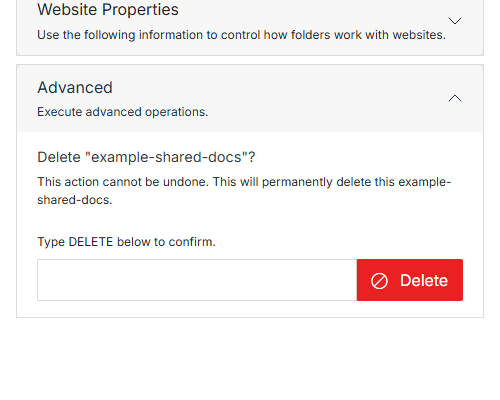
Advanced

Name Description
Delete To delete the folder, type DELETE in the input field and click the red Delete button. This action cannot be undone.