Vhost

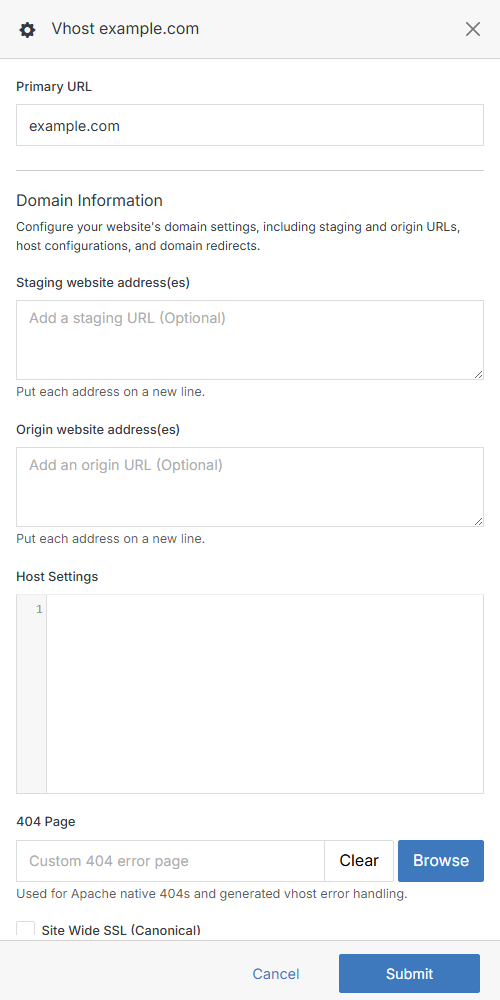
Vhost (virtual host) applies to a specific website in the CMS. Administrators configure the website's primary URL here, set a domain for staging, add redirects, and manage CDN/SSL and other advanced settings. This article covers Vhost and its configurable fields.

Vhost panel

Name Description
Primary URL Update the primary URL of your website.
Domain Information Enter staging/origin addresses, host settings, a custom 404 page, and domain redirects.
SSL Information Manage your SSL certificate configuration.
CDN Information Configure your CDN information.

Domain Information

Update domain information: website addresses, host settings, a custom 404 page, and domain redirects.

Name Description
Staging website address(es) The domain name(s) for your staging site used for testing. Put each address on a new line.
Origin website address(es) The domain name(s) for the non-cached, origin version of your production website. Put each address on a new line.
Host Settings Add custom rules to the domain hosts file.
404 Page Click Browse to select a custom 404 error page, used for Apache-native 404s and generated Vhost error handling.
Site Wide SSL (Canonical) Check this to force an HTTPS connection to all pages.
Domain Redirects Click Add Redirects to add a domain-level redirect.

SSL Information

Secure Sockets Layer (SSL) establishes a secure, encrypted connection between a server and a client.

Name Description
SSL website address The domain name that establishes an HTTPS connection to your website.
SSL Certificate Configuration Choose how the website is secured: Off, Let's Encrypt (automatic, free certificate), or Custom (provide your own certificate, key, and chain).

CDN Information

A Content Delivery Network (CDN) is a network of servers strategically distributed around the world to help deliver web content more efficiently and quickly.

Name Description
Enable CDN Turn on CDN delivery and reveal the rest of the CDN options.
CDN website address The CDN website address or origin URL.
CDN Provider Choose your CDN provider from the dropdown (for example, AWS).
AWS CDN (distribution) The AWS CloudFront distribution to use.
AWS Account Config Links to the AWS provider to connect your AWS account.

Click Submit to save your changes.