
Website Overview
You can manage any website in your Solodev CMS to update details, adjust the Vhost, apply redirects, and modify permissions for your team. You will also have access to the web files and www folders for managing your website's pages, templates, and other assets.
Website Dashboard
After selecting an active website in your Solodev CMS, you're directed to that website's dashboard: a left-hand file tree, a live preview of the site in the middle, and a details/actions panel on the right.
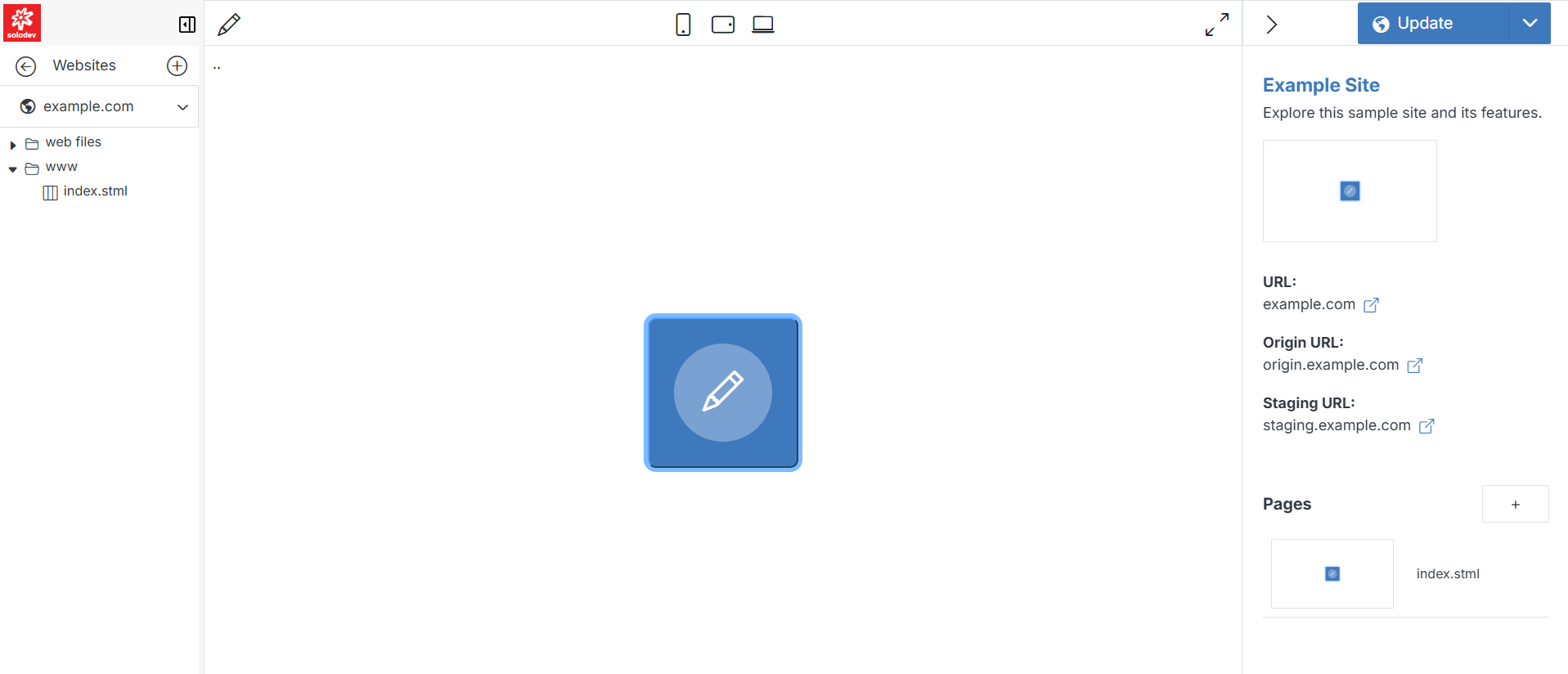
Left: file tree — expand web files and www to browse the site's folders and pages, and switch between websites using the dropdown at the top of the tree.
Note:
Click the back arrow or Websites at the top of the tree to return to the main Websites list.
Tip:
If the file tree looks empty, you (or your group) may not be a member of this website yet — being in a group with broad app-level access isn't the same as having permissions on this specific website. Add yourself via Permissions.
Center: live preview — the toolbar above the preview includes a pencil icon to edit the index.stml page (your homepage), device-width toggles (mobile, tablet, and desktop) for responsive previews, and an expand icon to view the preview in full screen.
Right: details and actions — shows the website's name, description, and thumbnail, followed by its addresses:
The Update dropdown provides:
At the bottom of the panel, Pages lists the site's most recently worked-on pages as thumbnails, with a + button to add a new one. Click any page to open it.
web files and www
Solodev has a unique, folder-based site structure for managing and building websites. This consists of two core folders: web files and www. These folders mutually reinforce one another and help power your website's content, code, and pages.
After adding a website to your Solodev CMS, you can access the web files and www folder from the left-hand menu on your main website dashboard.
web files
The web files folder houses the backend elements that power the structure of your website. This includes navigational and layout templates, HTML, code files, imagery and content, modules, forms, and other components. You can manage files from this folder.
www
The www folder includes all the frontend pages and files that are publicly accessible when a visitor navigates your website. The www folder is where you can manage pages on your website.
Using web files and www
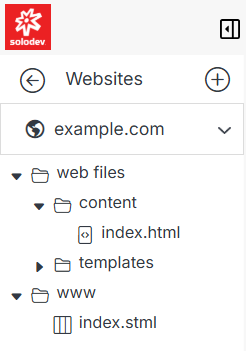
There are several functions you can perform in web files and www at the folder and the file level:
-
Manage the folder properties by clicking on the folder icon or text.
-
Access the contents of either folder by clicking on the triangle drop-down icon to the left of each folder icon.
-
Under the www folder, you can use all the same functions as web files, but also add a page or manage a page.