Experiment
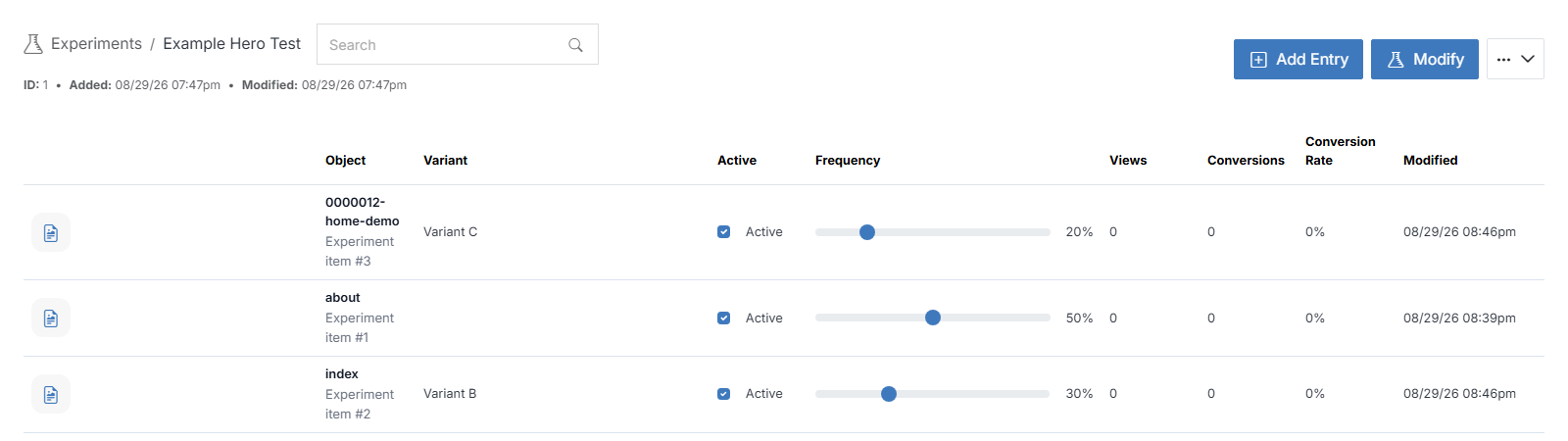
An A/B experiment alternates between two or more HTML/TPL files for visitors and tracks which version performs best. Each visit is randomly assigned to a variant based on the Frequency percentage set for that variant. The experiment tracks views and, once a visit is marked as converted, conversions for each variant, allowing you to compare their conversion rates.
Note:
Content being tested cannot be a page itself. It must be an .html or .tpl file located in your web files, not an .stml page.
While editing a page, find the vertical icon rail on the left edge of the page canvas. Experiment is the last icon, at the bottom.

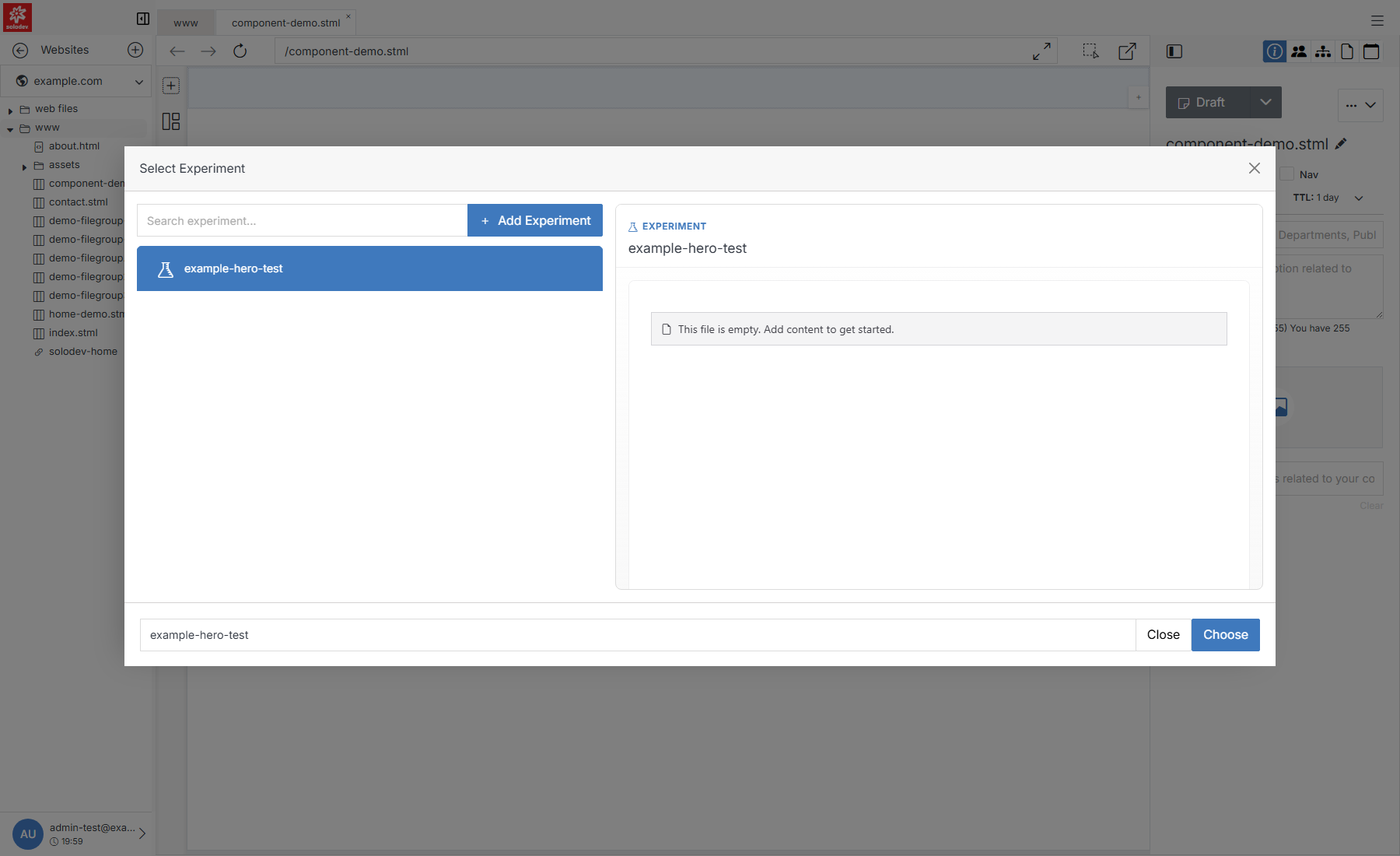
Drag it onto an empty region of the canvas. This opens Select Experiment. Search for an existing experiment and select it to preview its details before choosing it.
Quick Add
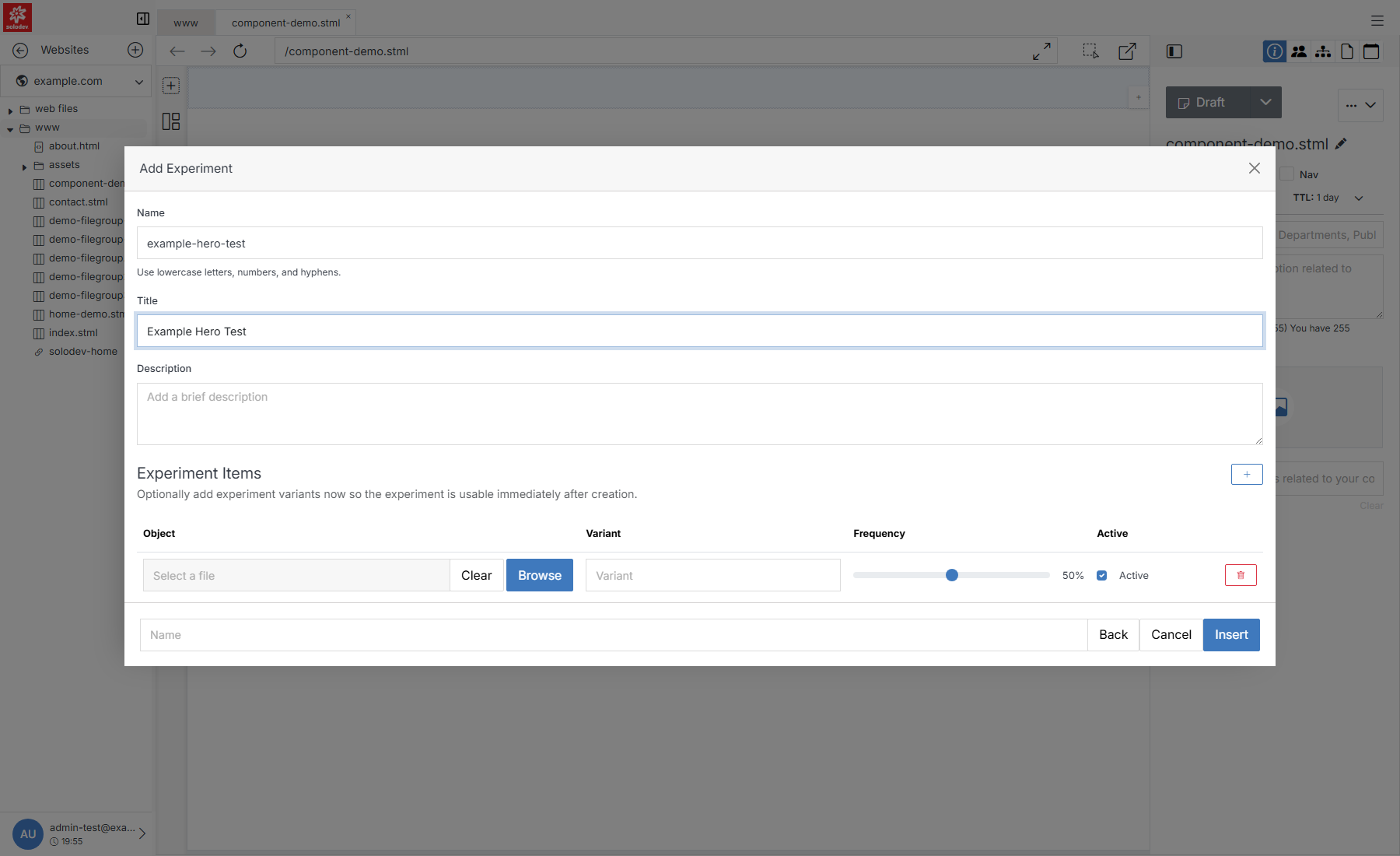
If nothing in the list fits, click + Add Experiment to create one without leaving the page. It also lets you add variants immediately, so the experiment is usable as soon as you insert it.