
File

Insert an HTML or Template Code file from your website's web files — useful for reusable page structure like a base template, header, or footer.

File icon in the component palette

Step 1: While editing a page, find the vertical icon rail on the left edge of the page canvas. File is the third icon from the top.

Step 2: Drag it onto an empty region of the canvas. This opens Select File.
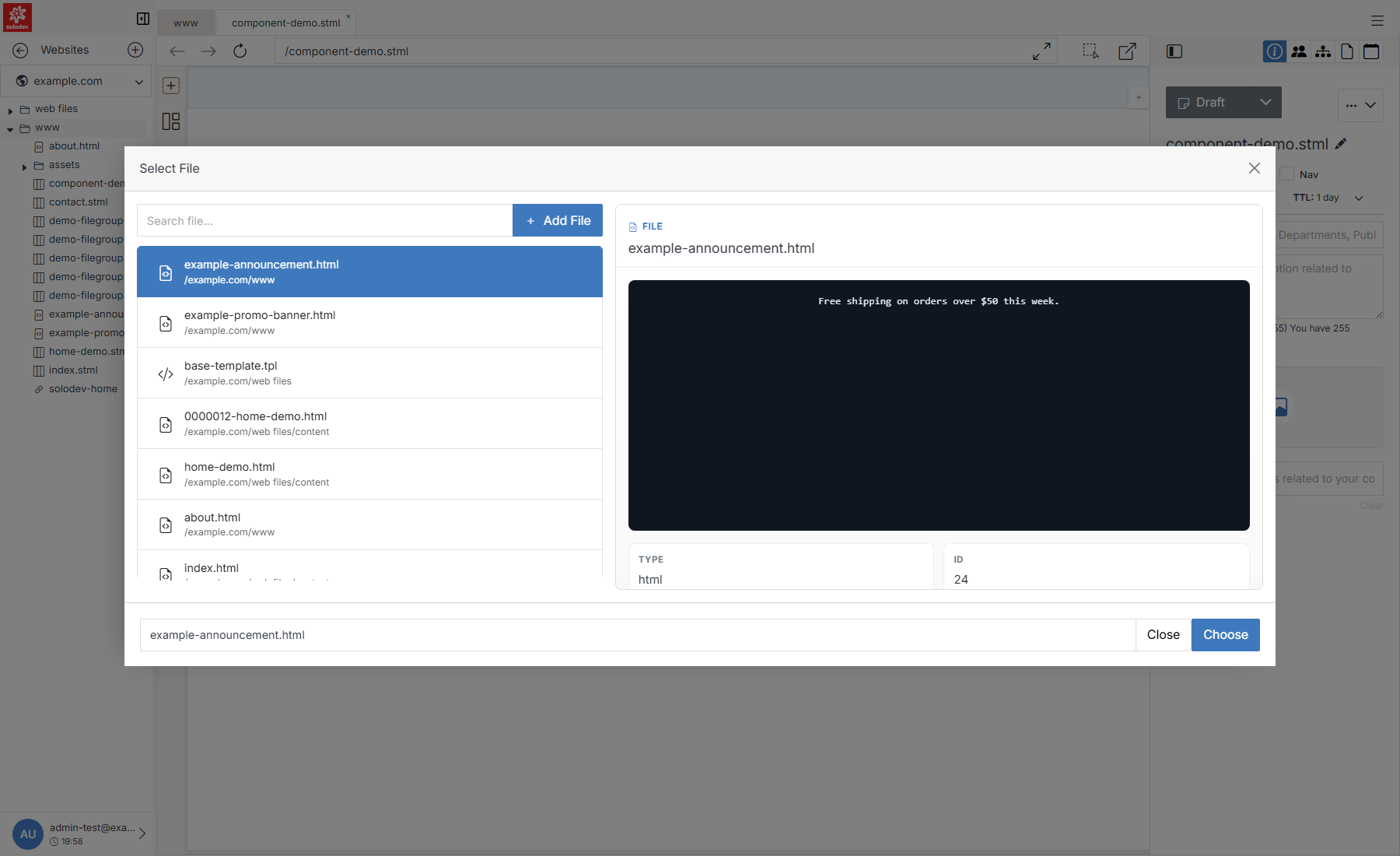
Select File picker with a template previewed

Name Description
Search file Filter the list by name.
Add File Create a new file on the spot if the one you need doesn't exist yet.
Results list Files from your website's web files, grouped by location.
Preview pane Selecting a file previews its code alongside its Type, ID, Module, Location, Title, Modified, Added, and Parent Folder.
Choose Insert the selected file at the drop location.

Quick Add

If nothing in the list fits, click + Add File to create one without leaving the page.

Quick Add File form

Name Description
Name The file's internal name. Lowercase, letters/numbers/hyphens only.
Title The file's display title.
File Type HTML, Template Code (.tpl), README, or Upload File (attach an existing file instead of writing content here).
HTML/Template Content A rich-text editor for the file's actual content — use the Source button to edit raw markup directly.
Insert Creates the file and returns you to Select File with it selected.