

Team
Introduce the people behind your organization with professional team profiles.
The Solodev Team Module makes it easy to showcase the people behind your organization. Add photos, titles, bios, and contact details to help visitors get to know your team.
-
Create and manage team profiles with ease – Add, edit, and remove team members quickly through an intuitive module. Keep profiles current as roles change and new people join.
-
Fully customizable structure and categories – Organize team members by department, leadership, or board. Control how profiles are displayed and make it easy for visitors to find the right person.
-
Build trust with your audience – Put a face to your organization with clear, professional profiles. Help visitors connect with the people who serve them.
Prerequisites
- Have a Solodev CMS.
- Have a Website.
Note:
We use Bootstrap 5 in our packages. You can update your code to match your own framework, styles, or preferences as needed.
Step-by-Step Setup Guide
These steps will guide you through the process of installing the Team Module and getting it live on your page.
- Navigate to Modules
- In your CMS dashboard, click Modules in the left navigation menu
- Click the Add Module button
- Give your team module a name
- Select the Team Module from the Module Picker
- Click Submit.
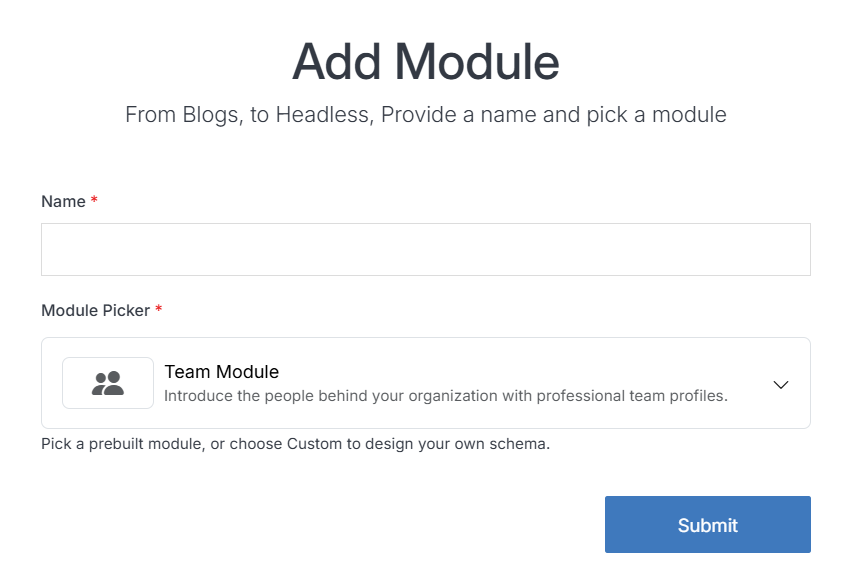
Note:
The module includes pre-built entries that you can personalize by editing the module content.
- Navigate to
Websites > example.com > web files > content
- Create a folder called
team - In the team folder, create a new code file named
team-repeater.tpl
- Add the team code using the example template provided below.
<div class="container">
  <ul class="list-group list-group-flush">
    [repeater id="" display_type="news" type="datatable" order="team_name asc"]
      <li class="list-group-item py-4 px-0">
        <div class="row align-items-center g-4 text-center text-md-start">
          <div class="col-md-3">
            <div class="ratio ratio-1x1">
              <img src="[get_asset_file_url id='{{team_image}}']" [is_set value="{{team_image_alt_tag}}"]alt="{{team_image_alt_tag}}"[else]alt="{{team_name}}"[/is_set] class="object-fit-cover">
            </div>
          </div>
          <div class="col-md-9 ps-md-4">
            <h3 class="fw-bold mb-1">{{team_name}}</h3>
            <p class="fs-5 text-body-secondary mb-3">{{team_position}}</p>
            <a href="tel:{{team_phone}}[is_set value='{{team_ext}}'],{{team_ext}}[/is_set]" class="d-block fs-5 text-body-secondary text-decoration-none mb-2">
              <i class="bi bi-telephone-fill me-2" aria-hidden="true"></i>{{team_phone}}[is_set value="{{team_ext}}"] ext. {{team_ext}}[/is_set]
            </a>
            [is_set value="{{team_email}}"]
              <a href="mailto:{{team_email}}" class="d-block fs-5 text-body-secondary text-decoration-none">
                <i class="bi bi-envelope-fill me-2" aria-hidden="true"></i>{{team_email}}
              </a>
            [/is_set]
          </div>
        </div>
      </li>
    [/repeater]
  </ul>
</div>
Important!
You need to add the ID number of your team module to the repeater shortcode within the id="" attribute.
-
Click Publish.
-
Open your homepage
index.stmlor the desired page where you want to add the team listing. -
Insert your team file into the page.
-
Click Publish.
-
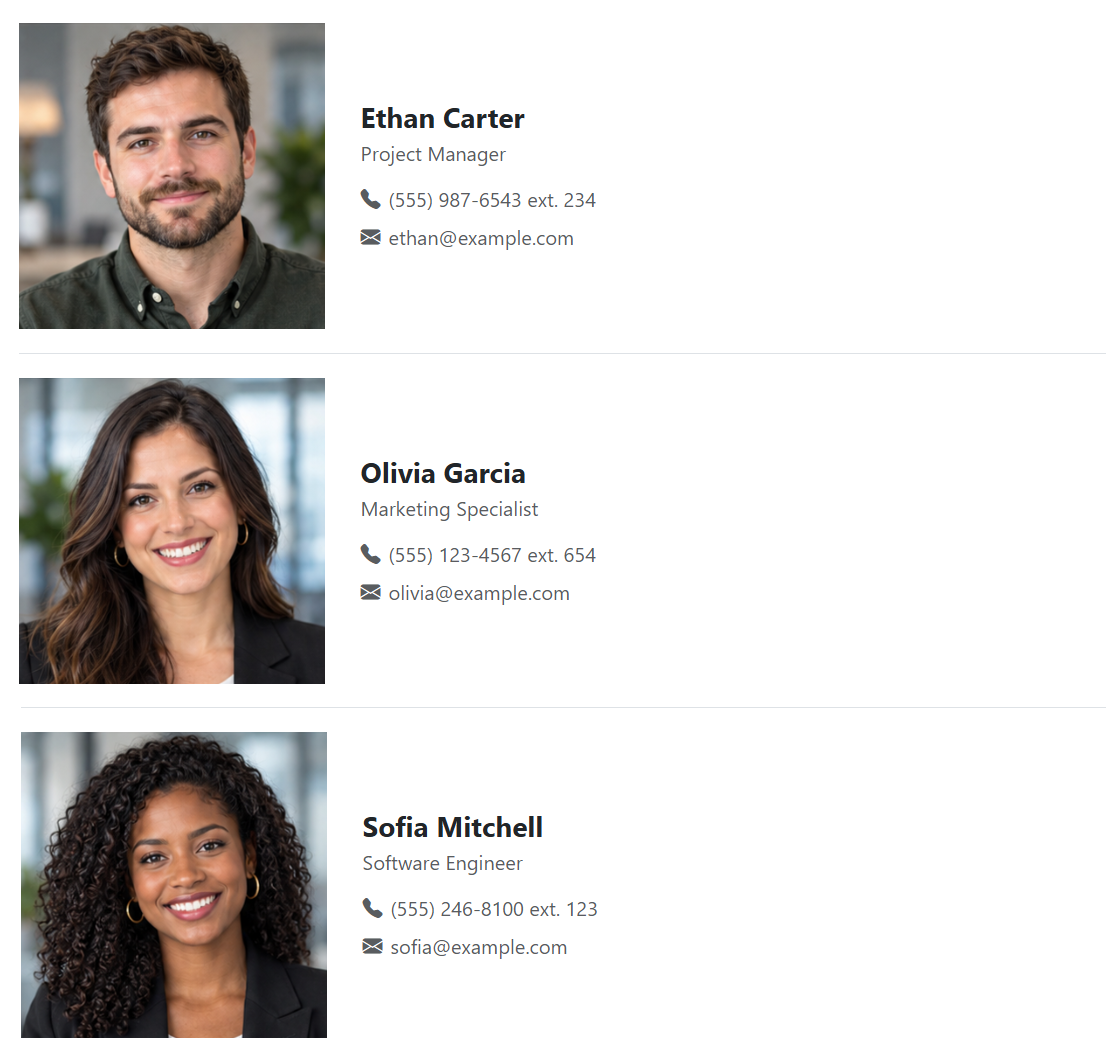
Go to your website and refresh the page to see your team in action.
Support
Support for Team Module is handled directly through Solodev's global help desk. For more information regarding support queries, go to www.solodev.com.
Note:
To learn more about shortcodes and how they work, visit our shortcodes documentation.